
Microsoft Copilot
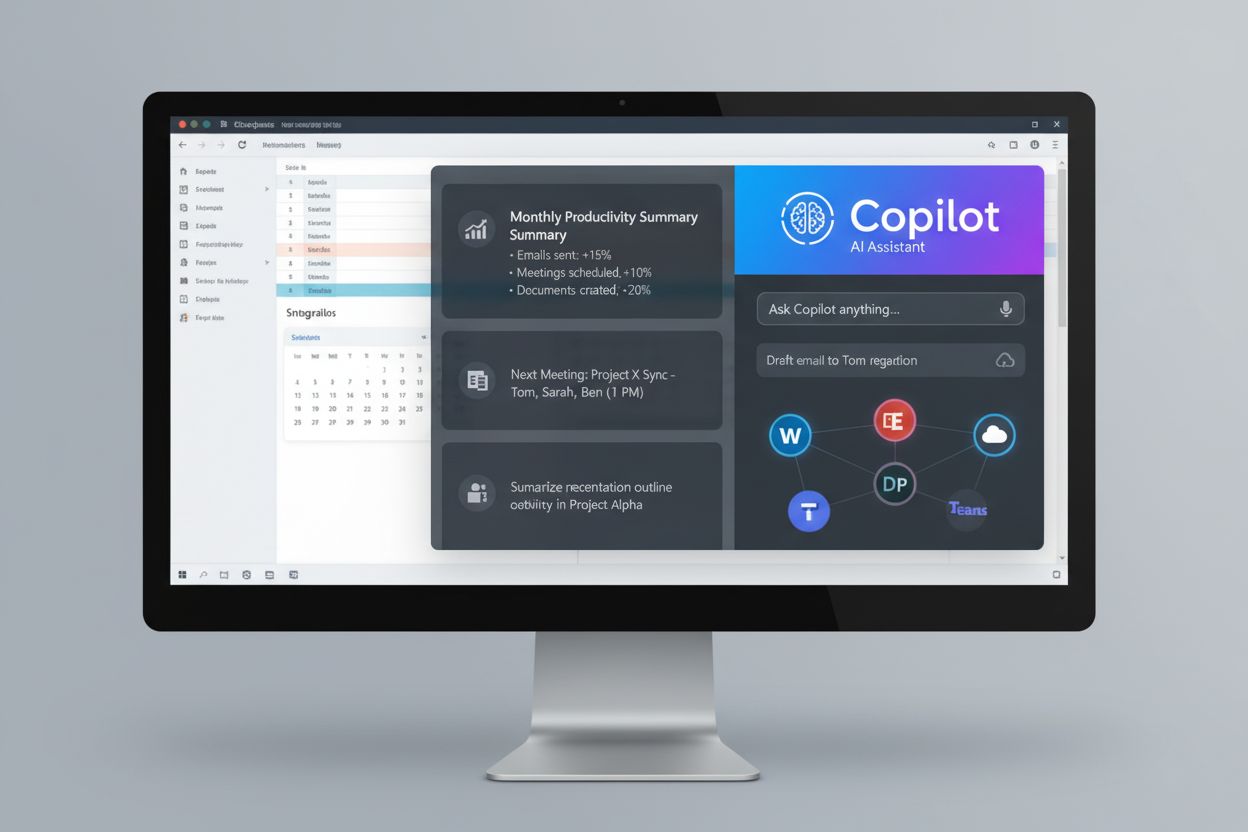
Learn what Microsoft Copilot is, how it integrates across Microsoft 365 products, and its role in AI-powered workplace productivity and enterprise adoption.
10 min read
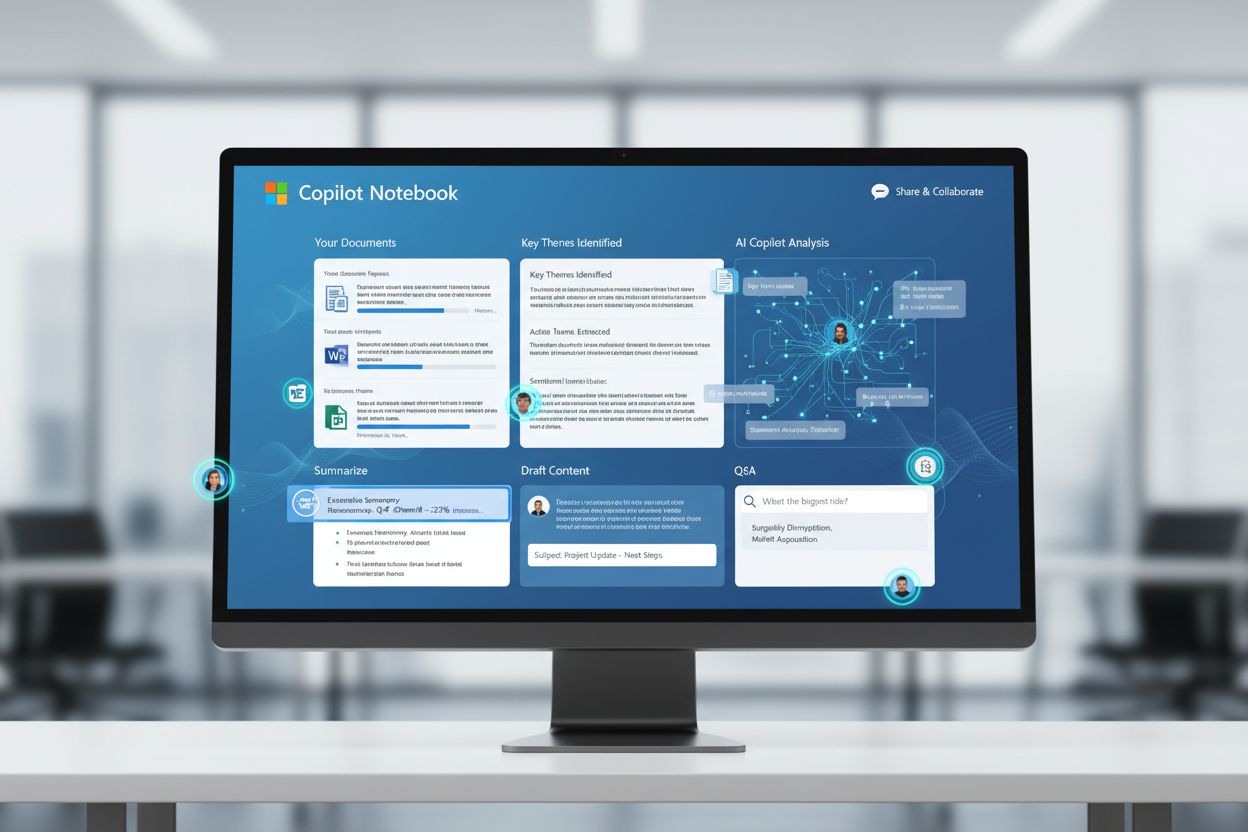
Microsoft Copilot Notebook is an AI-powered workspace designed for long-form content creation and document management. It gathers relevant materials into a scoped environment where Copilot analyzes only the references you’ve added, enabling intelligent summarization, content drafting, and collaborative knowledge work grounded in your specific project materials.
Microsoft Copilot Notebook is an AI-powered workspace designed for long-form content creation and document management. It gathers relevant materials into a scoped environment where Copilot analyzes only the references you've added, enabling intelligent summarization, content drafting, and collaborative knowledge work grounded in your specific project materials.
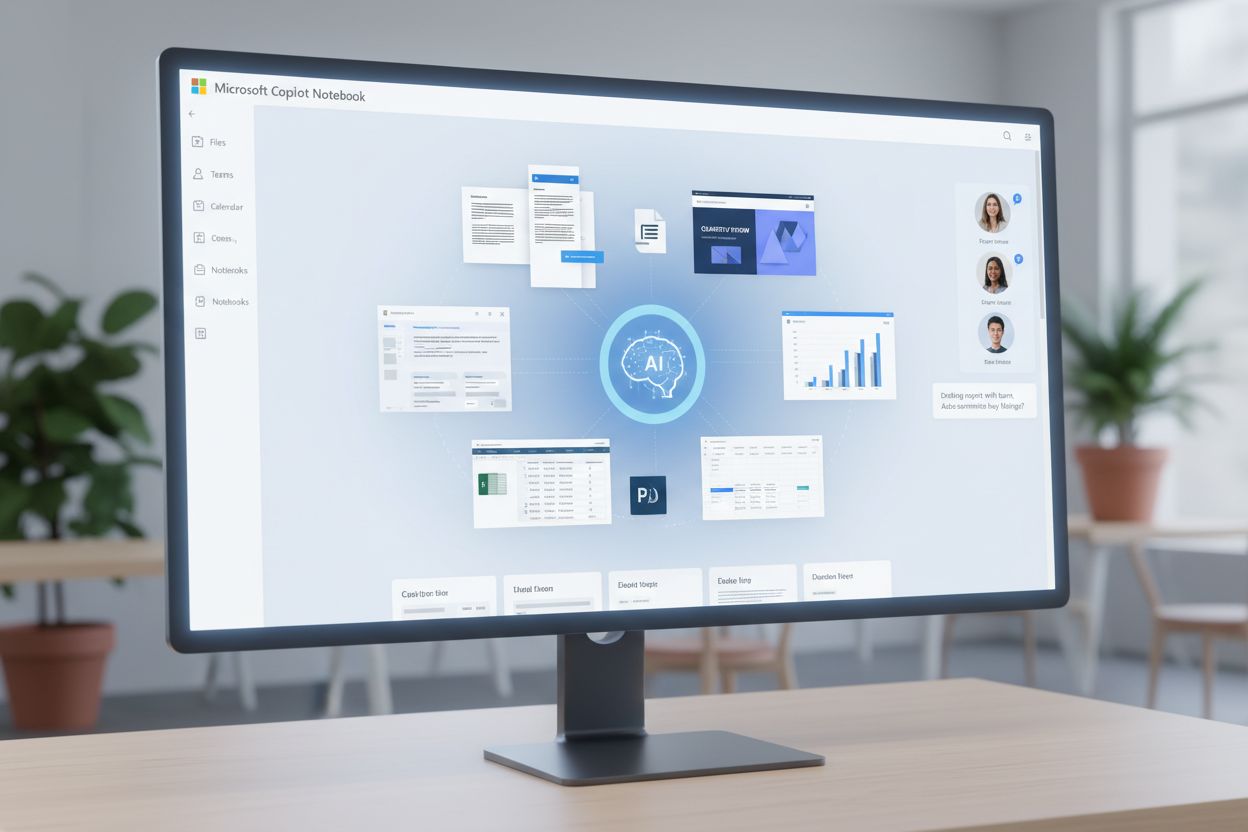
Microsoft Copilot Notebook is an AI-powered workspace designed specifically for long-form content creation, document management, and collaborative knowledge work. It functions as an intelligent, scoped environment where users can gather relevant materials—including Word documents, PowerPoint presentations, Excel sheets, PDFs, Copilot chats, OneNote pages, and meeting notes—into a single organized space. Unlike general-purpose AI assistants that search the entire web, Copilot Notebook operates with a focused scope, meaning it only analyzes and responds based on the specific references you’ve explicitly added to your notebook. This targeted approach ensures that all AI-generated insights, summaries, and drafts are grounded in your actual project materials, making it an invaluable tool for professionals who need to draft, edit, and refine complex documents while maintaining accuracy and relevance.
Copilot Notebook delivers a comprehensive suite of AI-powered capabilities that transform how teams work with documents and information. The platform excels at summarizing and analyzing content, allowing users to extract key points, identify themes, and synthesize information from multiple documents simultaneously. Beyond analysis, it enables intelligent content drafting, generating emails, project plans, proposals, and reports that are grounded in the specific materials within your notebook. Users can ask targeted questions and receive focused answers based exclusively on their notebook’s content, eliminating irrelevant web results. The platform also supports real-time collaboration, enabling teams to co-create documents with Copilot while maintaining version control and shared context. An innovative audio overview feature allows professionals to listen to material summaries while commuting or multitasking. Additionally, users can set custom instructions to personalize Copilot’s tone, format, and style, ensuring consistent output that matches organizational standards.
| Capability | Description | Primary Use Case |
|---|---|---|
| Summarize & Analyze | Extract key points, identify themes, synthesize information | Quick project overviews, competitive analysis |
| Draft Content | Generate emails, plans, reports, proposals | Content creation, document generation |
| Answer Questions | Get focused answers grounded in notebook content | Information retrieval, fact-checking |
| Real-Time Collaboration | Co-create with team members and Copilot | Team projects, distributed work |
| Audio Overviews | Listen to material summaries on-the-go | Mobile learning, accessibility |
| Custom Instructions | Personalize tone, format, and style | Consistent branding, organizational standards |
The workflow of Copilot Notebook follows an intuitive four-step process that maximizes productivity and content quality. First, users create a new notebook and give it a descriptive name related to their project or task. Second, they add references from multiple sources—Word documents, PowerPoint decks, Excel sheets, PDFs, Copilot chats, OneNote pages, meeting notes, or external links. Copilot intelligently suggests relevant content based on the notebook’s topic, streamlining the reference-gathering process. Third, users ask questions or request drafts, and Copilot analyzes only the content within the notebook to provide focused, accurate responses. Finally, as the project evolves, users continue adding references that update dynamically, and Copilot’s responses automatically incorporate the new information. This scoped approach ensures that Copilot never pulls information from your entire OneDrive, email, Teams chats, or the internet—only from the materials you’ve explicitly selected, maintaining both privacy and relevance.
Copilot Notebook supports a comprehensive range of file formats, making it compatible with virtually all Microsoft 365 applications and common document types. The platform seamlessly integrates with the entire Microsoft 365 ecosystem, allowing users to work across multiple applications without context switching. This integration extends to mobile devices, enabling professionals to continue their work on smartphones and tablets. The platform supports multiple languages, matching the language availability of Microsoft 365 Copilot, with audio features available in eight languages: English, Spanish, Japanese, French, German, Portuguese, Italian, and Chinese.
Supported File Formats:
Integration Points:
Copilot Notebook excels in diverse professional scenarios where document management and AI-assisted analysis drive value. Project research and planning benefit significantly, as teams can gather all relevant materials—market research, competitor analysis, customer feedback, and strategic documents—into a single notebook, then ask Copilot to synthesize findings and identify key themes. Team synchronization and meeting preparation become more efficient when users create notebooks containing recent updates, performance metrics, and discussion points, allowing Copilot to generate focused meeting agendas and discussion summaries. Proposal and report generation accelerates when teams compile source materials and ask Copilot to draft comprehensive documents that incorporate all relevant information. Content analysis and insights emerge naturally as Copilot identifies patterns, highlights critical information, and extracts actionable recommendations from large document collections. Knowledge management and organizational learning improve when teams use notebooks to capture institutional knowledge, best practices, and lessons learned, making this information searchable and analyzable. Cross-functional collaboration becomes seamless as team members from different departments contribute documents to shared notebooks, ensuring everyone works from the same information foundation.
The strategic advantages of Copilot Notebook extend beyond simple document management. Focused, scoped AI responses ensure that Copilot only analyzes the materials you’ve selected, eliminating irrelevant web search results and maintaining accuracy. Privacy and security are paramount, as users maintain complete control over what Copilot sees and uses—the AI never accesses your entire OneDrive, email, Teams chats, or the internet. Real-time collaboration capabilities enable teams to work together seamlessly, with multiple users contributing to the same notebook and Copilot providing consistent, grounded responses. Persistent, shareable content means that work isn’t lost after a chat session ends; notebooks remain available for future reference, editing, and sharing with colleagues. Reduced context switching keeps professionals focused on their work, as they can access all necessary materials and AI assistance within a single interface. Improved productivity for knowledge workers results from automating routine tasks like summarization, analysis, and initial drafting, freeing time for higher-value strategic thinking and decision-making.
While Copilot Notebook is powerful, users should be aware of current limitations that may affect specific use cases. The platform cannot generate images or create data visualizations, limiting its utility for visual content creation. Grounding is limited to the first 100 references in a notebook, meaning very large projects may need to be split across multiple notebooks. General web grounding is not available, so Copilot won’t supplement notebook content with internet information. Grounding delays of up to 10 minutes may occur when newly added or removed references are reflected in Copilot’s responses, which can impact real-time collaboration scenarios. Notebook deletion improvements are still in development, with a recycle bin feature planned to make recovering deleted notebooks and restoring content easier. These limitations are actively being addressed by Microsoft, and the platform continues to evolve with enhanced capabilities.
While both Copilot Notebook and Copilot Pages are part of the Microsoft 365 Copilot ecosystem, they serve distinct purposes and work best in different scenarios. Copilot Notebook functions as a scoped workspace for gathering references and getting AI-powered analysis and insights grounded in those materials. It’s ideal for research, analysis, and information synthesis. Copilot Pages, by contrast, is an interactive workspace that transforms AI responses into editable, shareable, formatted documents. Pages are better suited for creating polished, presentation-ready content that teams can collaborate on and share widely. The two tools are complementary—you might use a Notebook to research and analyze a topic, then create a Page to draft the final proposal or report based on your notebook’s insights. Additionally, Copilot Notebook differs from OneNote, which is a traditional note-taking application without AI-powered analysis capabilities. OneNote excels at capturing and organizing notes, while Copilot Notebook specializes in AI-assisted content creation and analysis.
Creating and using a Copilot Notebook effectively requires understanding a few key practices. To create a notebook, sign in to microsoft365.com, navigate to the Notebooks section, and select “Create first notebook.” Give your notebook a descriptive name that reflects its purpose. When adding references, start with the most critical documents, then use Copilot’s intelligent suggestions to identify additional relevant materials. You can add references through search, OneDrive browsing, direct upload, or by pasting links to supported file types. Setting custom instructions early in the process ensures that Copilot’s responses match your preferred tone and format throughout the project. For collaboration, share your notebook with team members by selecting the people icon and entering their email addresses. Best practices include organizing references logically, regularly reviewing and updating references as your project evolves, and using specific, detailed prompts to get the most relevant responses from Copilot. To maximize value, treat your notebook as a living document—continuously add new insights, feedback, and materials as they become available, allowing Copilot to provide increasingly sophisticated analysis and recommendations.
As AI tools like Copilot Notebook become integral to business operations, the importance of monitoring how AI systems reference and cite your organization’s work cannot be overstated. AmICited.com specializes in tracking how AI systems—including GPTs, Perplexity, Google AI Overviews, and Microsoft Copilot—reference your brand and content. With Copilot Notebook enabling teams to create and share AI-generated content at scale, understanding how your intellectual property and brand are being cited across AI platforms becomes critical. Organizations using Copilot Notebook should implement comprehensive AI monitoring strategies to ensure proper attribution, maintain brand consistency, and protect proprietary information. By tracking AI citations and references, companies can identify opportunities to improve their content visibility in AI responses, understand how their expertise is being leveraged, and ensure compliance with citation standards. This proactive approach to AI monitoring complements the power of tools like Copilot Notebook, creating a complete ecosystem for AI-assisted work that maintains transparency and accountability.
Copilot Notebook is an AI-powered workspace with scoped grounding that analyzes only your added references to provide insights and draft content. OneNote is a traditional note-taking application without AI-powered analysis capabilities. Copilot Notebook specializes in AI-assisted content creation and analysis, while OneNote excels at capturing and organizing notes.
Yes, a Microsoft 365 Copilot license is required to use Copilot Notebook. Additionally, accounts must have a SharePoint or OneDrive license (service plan). However, Copilot Notebook is also available for Microsoft 365 Personal, Family, and Premium subscribers.
Copilot Notebook supports .docx, .pptx, .xlsx, .pdf, .page, .loop, and OneNote pages. You can also add links to supported file types within your Microsoft 365 account, upload files directly, and add Copilot chats and meeting notes to your notebook.
Yes, you can share notebooks with team members for real-time collaboration. Simply select the people icon in your notebook, enter team members' email addresses, and send invitations. Shared notebooks allow co-creation with Copilot and your teammates simultaneously.
Copilot only accesses references you explicitly add to the notebook. It doesn't access your entire OneDrive, email, Teams chats, or the web. You maintain complete control over what Copilot sees and uses, ensuring that all outputs are grounded in the specific context you've defined.
Current limitations include no image generation or data visualizations, grounding limited to the first 100 references, no general web search, and up to 10-minute delays for reference updates to be reflected in responses. Microsoft is actively addressing these limitations with planned improvements.
Yes, Copilot Notebook is available on mobile devices, allowing you to continue working on your notebooks from your phone or tablet. This enables professionals to access and collaborate on notebooks while on the go.
It may take up to 10 minutes for newly added or removed references to be reflected in Copilot's responses. This grounding delay is important to consider when working on time-sensitive projects or making rapid updates to your notebook.
Track how Copilot Notebook and other AI systems cite your content across platforms. AmICited monitors AI answers to ensure your brand gets proper attribution.
Learn what Microsoft Copilot is, how it integrates across Microsoft 365 products, and its role in AI-powered workplace productivity and enterprise adoption.
Learn about Copilot Vision, Microsoft's multimodal AI feature for real-time image and screenshot analysis. Discover how it works, its capabilities, use cases, a...

Learn how to optimize your brand for Microsoft Copilot. Discover technical SEO strategies, content structure, schema markup, and best practices to improve visib...
Cookie Consent
We use cookies to enhance your browsing experience and analyze our traffic. See our privacy policy.