


How to Edit Multiple Prompts at Once
Bulk-edit tracked prompts in AmICited by changing tags, frequency or providers, or deleting several prompts in one action.

When you’re managing a hundred-plus prompts, editing them one at a time is a chore. The bulk action bar lets you select many prompts and change them together: retag, reschedule, adjust engines, or delete in a single move.
Quick Steps
- Tick checkboxes on one or more rows in the Tracked prompts table (or the header checkbox to select all) to open the bulk action bar.
- Apply a Tag to the whole selection to group and filter prompts later.
- Use Set Frequency to reschedule the selection to
daily,weekly,monthly,yearlyorone time. - Change Providers to update which AI engines the selected prompts run against.
- Delete stale prompts, or Clear the selection to start over.
What is prompt tracking?
Prompt tracking is the practice of monitoring a defined set of natural-language questions (the kind real people type into ChatGPT, Perplexity, Gemini, or Google AI Overviews) to see whether, where, and how often a brand gets cited in the answers. Each tracked prompt is checked on a schedule against one or more AI providers, and the results roll up into metrics like citation rate and share of voice . This is the AI-search equivalent of keyword rank tracking in traditional SEO, except the unit of measurement is a conversational query rather than a search-box string, and the “ranking” is whether, and where, your brand shows up inside a generated answer rather than on a results page.
The list of prompts you track is often called a prompt library : a curated collection of queries that represent the moments where your brand could plausibly be cited, including category questions, comparison queries, “best X for Y” prompts, and problem-solving questions your buyers actually ask. A well-built library mixes branded and unbranded prompts, covers different stages of the buying journey, and gets pruned over time as some prompts prove irrelevant and new ones emerge. Because AI visibility programs frequently run with dozens or hundreds of prompts across several engines, the operational question quickly becomes less “what should I track” and more “how do I manage all of this without burning an afternoon on repetitive clicks.”
That’s the gap bulk editing closes. Every prompt in your library has a handful of attributes that shape how it’s tracked: a tag for grouping, a check frequency, and the AI providers it runs against. Individually, changing any one of these is a two-second edit. Multiplied across a hundred prompts after a strategy shift (say you just added a new competitor, or you want to check your weakest prompts more often), those two-second edits become an hour of repetitive work. Bulk actions turn that hour back into a single operation, which matters because the value of a generative engine optimization program depends on the prompt library staying current, well-organized, and responsive to what you’re learning from the data, not on how much patience you have for clicking checkboxes.

daily in one action.Where to find it
In the Tracked prompts table, tick the checkbox on one or more rows (or the header checkbox to select all). A bulk action bar appears above the table showing “N selected” and the available actions. The bar stays anchored above the table as you scroll, so you can keep selecting rows across a long, filtered list without losing your place. Combine selection with the table’s existing filters and sorting: filter to a specific tag, provider, or ranking status first, then select within that filtered view, so you’re always applying the bulk action to a deliberate, well-defined group of prompts rather than eyeballing a long unfiltered list.
What you can do in bulk
- Tag: apply a tag to every selected prompt (via Tag · +TAG), so you can group and filter them later. Tags are the main way to organize a large prompt library into meaningful segments, by product line, by competitor set, by funnel stage, or by campaign, so you can later slice your dashboard and report on a specific slice of your AI search visibility rather than the whole account average.
- Frequency: open Set Frequency and pick
daily,weekly,monthly,yearlyorone timeto reschedule them all at once. Frequency controls how often AmICited re-runs a prompt against your selected AI engines and refreshes its citation status, so this is the lever you pull when you want fresher data on prompts that matter right now and less frequent (cheaper) checks on prompts that rarely move. - Providers: change which AI engines the selected prompts are tracked against. Not every prompt needs to run against every provider: a prompt aimed at a Google AI Overviews audience behaves differently from one you’re watching in ChatGPT, so bulk-editing providers lets you align a whole group of prompts with the engines where that audience actually searches.
- Delete: remove the selected prompts (this stops tracking them; do it deliberately).
- Clear: deselect everything and dismiss the bar.
Why this matters for your AI visibility program
Bulk editing isn’t just a convenience feature: it’s what keeps a prompt library from calcifying. Programs that never revisit their prompt set tend to drift: prompts that made sense six months ago stop reflecting how your buyers actually phrase questions, tags become inconsistent as different team members add prompts individually, and check frequency ends up either too sparse (you miss a citation swing) or unnecessarily dense (you’re re-checking prompts that never change). Because bulk actions make reorganization cheap, they lower the friction to actually doing this maintenance regularly instead of postponing it indefinitely.
This is especially relevant if you’re running an agency workflow across several client accounts, where prompt libraries need periodic cleanup on a schedule, or if you’re an in-house team scaling from a starter list of a dozen prompts to the hundreds needed to properly cover your category. Either way, the underlying discipline is the same one behind a solid AI rank tracker: your source data, the prompts, has to stay curated and current, because everything downstream (citation rate, AI Overviews tracking, competitor comparisons) is only as good as the prompt set feeding it. If you haven’t yet built out that prompt set, it’s worth reading through how to find which prompts trigger AI to mention your brand before you start bulk-organizing what you already have.
Handy workflows
- Reprioritize by status. Filter to Not ranked, select all, and set Frequency to
dailyso your opportunities get checked more often. This is the fastest way to tighten feedback loops on the prompts where you have the most room to improve. You’ll see a citation appear (or a competitor pull ahead) sooner than if those prompts were still on aweeklyormonthlycadence. - Organize with tags. Select a themed group of prompts and apply a shared Tag to filter your dashboard by that theme later. Useful groupings include product lines, funnel stage (informational vs. comparison vs. transactional prompts), or a specific competitor you’re benchmarking against: any segmentation that lets you later ask “how are we doing on just this slice” instead of only the account-wide average.
- Trim the set. Select stale or off-topic prompts and Delete them so they stop diluting your Visibility Score. A prompt that no longer reflects real buyer language, or that was added as a one-off experiment, adds noise to your aggregate metrics without adding insight. Pruning it is as valuable to data quality as adding a new, well-targeted prompt.
- Realign providers after a strategy shift. If your audience research shows a shift toward, say, more Perplexity or Gemini usage in your category, select the relevant prompt group and update Providers in one pass instead of reconfiguring each prompt individually.
Where to go next
Bulk editing is maintenance infrastructure: it keeps your prompt library clean, current, and organized, but the real payoff shows up in the metrics that library feeds: citation rate, share of voice, and how consistently your brand appears across ChatGPT, Perplexity, Gemini, and Google AI Overviews. Once your prompts are well-tagged and scheduled at the right cadence, it’s worth reviewing your account’s overall AI rank tracker view to see how those changes play out over time, and if you manage visibility across multiple client accounts, the same bulk-editing discipline scales cleanly into the workflows AmICited builds for agencies running AI search visibility at a portfolio level.
Frequently asked questions
Tick the checkbox on one or more rows in the Tracked prompts table, or use the header checkbox to select every visible row. A bulk action bar appears above the table showing "N selected" and the available actions, and it stays anchored as you scroll so you don't lose your selection.
You can apply a Tag to the whole selection, use Set Frequency to reschedule them to daily, weekly, monthly, yearly or one time, change which Providers (AI engines) they run against, or Delete them. Clear deselects everything and dismisses the bar.
No. Deleting prompts in bulk removes them from tracking and their tracking history is lost, and this can't be undone. Double-check your selection, ideally after filtering to a deliberate group, before confirming a bulk Delete.
Frequency controls how often AmICited re-runs a prompt and refreshes its citation status. A common workflow is filtering to Not ranked prompts, selecting them all, and setting Frequency to daily so your biggest opportunities get checked more often, tightening the feedback loop on where you have the most room to improve.
More tutorials in this section
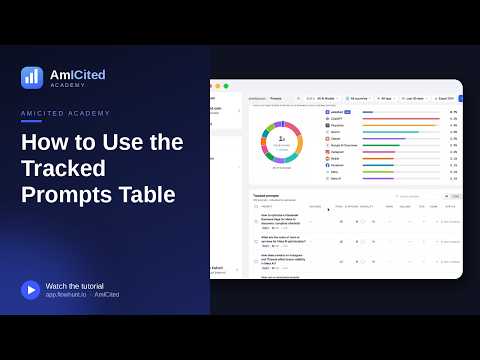 How to Use the Tracked Prompts Table
Learn how to read, search and filter the AmICited Tracked Prompts table, including each prompt’s citations, …
Read guide →
How to Use the Tracked Prompts Table
Learn how to read, search and filter the AmICited Tracked Prompts table, including each prompt’s citations, …
Read guide →
 Generate AI Prompts from a URL
Let AmICited analyze a page and suggest buyer questions to track as prompts.
Read guide →
Generate AI Prompts from a URL
Let AmICited analyze a page and suggest buyer questions to track as prompts.
Read guide →
 How to Add Prompts by Pasting a List
Already have a list of questions to track? Paste them straight into AmICited, one per line.
Read guide →
How to Add Prompts by Pasting a List
Already have a list of questions to track? Paste them straight into AmICited, one per line.
Read guide →Ready to put it into practice?
Free check · 7-day trial · card required