


How to Use the Tracked Prompts Table
Learn how to read, search and filter the AmICited Tracked Prompts table, including each prompt’s citations, visibility and rank.
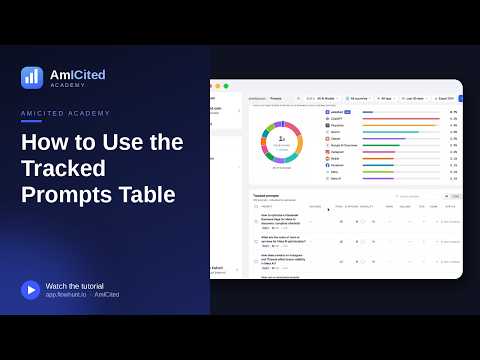
Every AI answer starts with a question, and the question is where visibility is won or lost.
Quick Steps
- A tracked prompt is a real question you monitor over time to see if AI engines cite your brand when answering it.
- Open the Prompts section to find the Tracked Prompts table, with each row showing engines, runs, citations, visibility and rank for one prompt.
- Switch to the Not ranked tab to see exactly which questions you’re missing, ranked implicitly by how much work is left to do.
- Cross-reference with Volume to prioritize: a missed high-volume prompt is a bigger opportunity than a missed low-volume one.
- Click into any prompt to see who’s being cited instead, then use that to guide new or updated content.
What is a tracked prompt?
A tracked prompt is a real question (the kind a buyer types into ChatGPT, Perplexity, Gemini or asks Google’s AI Overviews) that you monitor on a recurring basis to see whether your brand gets mentioned in the answer. It’s the fundamental unit of measurement in AI search visibility : instead of tracking keywords and their rankings on a search-results page, you track prompts and whether an AI model chooses to cite you when it answers them.
This matters because generative AI engines don’t return ten blue links for a query: they synthesize a single answer, and only a handful of sources make it into that answer as a citation. An AI citation is when a model names your brand, links to your page, or otherwise credits you as a source inside its response. Whether you’re cited depends entirely on which prompt is asked, which engine answers it, and what content exists to draw from at that moment. A brand can be cited constantly for one question and invisible for a nearly identical one, because the model retrieves and weighs sources differently prompt by prompt. That’s why visibility has to be measured at the prompt level, not just as a single brand-wide score.
This is also the practice known as generative engine optimization (GEO): the discipline of improving how often, how prominently, and how favorably AI systems cite your brand when answering the questions your buyers actually ask. GEO treats each prompt roughly the way traditional SEO treats a keyword: something you can target, monitor and optimize for. The difference is that a prompt’s “ranking” is really an appear-or-don’t-appear citation event, evaluated separately across every engine you track, and it can change from one refresh to the next as models re-crawl the web and re-weigh sources.
Because prompts are the atomic unit of AI visibility, a well-built prompt set should mirror the actual questions your audience asks at each stage of their research: broad category questions, “best X for Y” comparisons, competitor-alternative queries, and highly specific how-to questions. A narrow or stale prompt set gives you a misleading picture: you might look strong because you’re only tracking questions you already win, or weak because you’re tracking questions with no realistic path to a citation. Reviewing and refreshing what you track is as important as reviewing the results themselves. See how to find which prompts trigger AI to mention your brand if you’re still building out that list.
The Tracked prompts table is where AmICited turns this concept into a working screen. Every question you track lives here as a row, with its performance summarized across the AI engines you monitor.
Where to find it
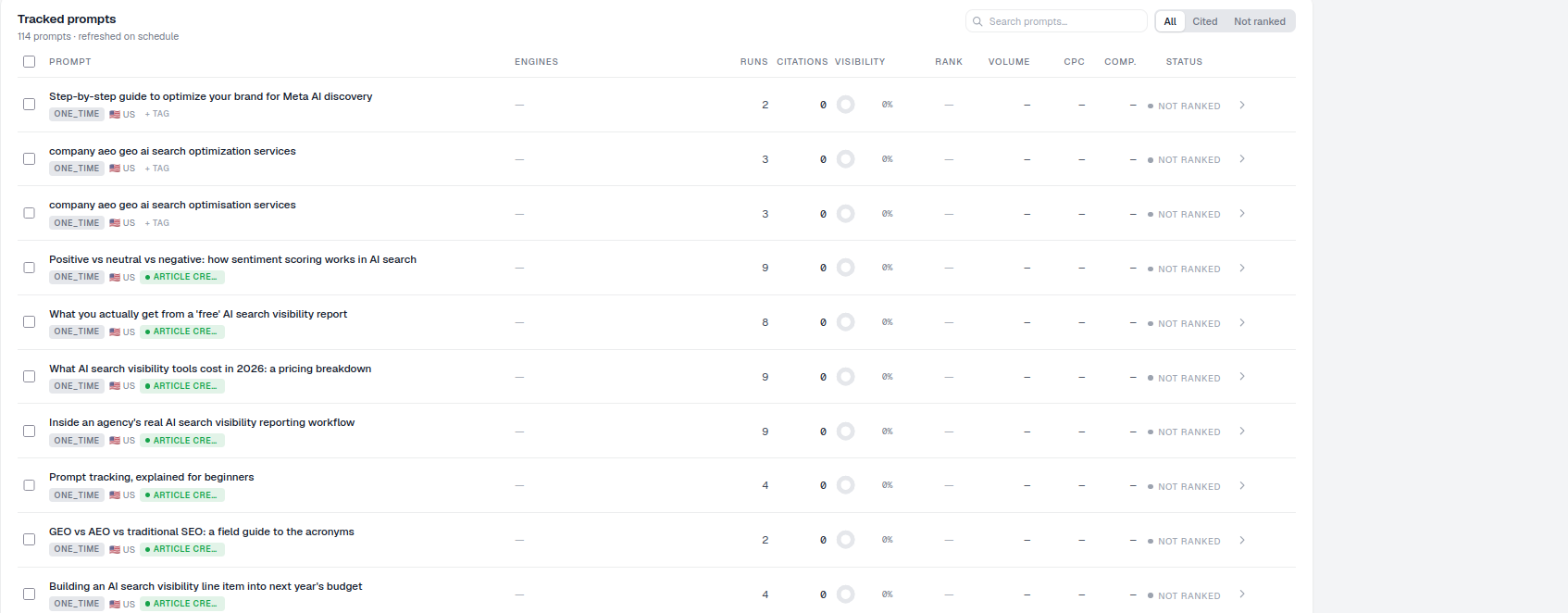
Open the Prompts section from the left navigation. The table fills the lower half of the page, under the overview stats and the Brand voice chart. Its header reads “114 prompts · refreshed on schedule,” with a Search prompts box and All / Cited / Not ranked filter tabs on the right. Because the table sits directly under the account-level summary charts, you can move from “how am I doing overall” to “which specific question is the problem” in a single scroll: the overview gives you the trend, the table gives you the individual cases behind it.
What each column tells you
Each row is one prompt. Reading across, the table shows:
- Prompt: the question text, with small badges beneath it for its schedule (e.g.
DAILY,ONE_TIME), country (a flag), and any tag you’ve applied. The schedule badge tells you how often AmICited re-runs that question against your tracked engines; aDAILYprompt gives you a near-real-time read on volatile, high-priority questions, while aONE_TIMEprompt is more useful for a one-off audit or a seasonal query you don’t need refreshed constantly. - Engines: which AI engines this prompt is tracked against. A prompt can be run across multiple engines at once, and each engine can produce a different citation outcome for the exact same question, which is why the table doesn’t collapse them into one blended number.
- Runs: how many times it has been executed. This is your sample size: a prompt with dozens of runs gives you a far more reliable visibility read than one that’s only fired once or twice.
- Citations: how many citations your brand earned for it, i.e. how many of those runs actually named or linked you.
- Visibility: your visibility percentage for this prompt, calculated as citations divided by runs. This is the prompt-level version of the AI visibility score you see summarized elsewhere in the product.
- Rank: your average citation position when you appear. Being cited third or fourth in an AI answer behaves very differently from being cited first, so rank tells you not just whether you show up but how prominently.
- Volume / CPC / Comp.: search-metric context (search volume , cost-per-click, competition) to help you judge how valuable a prompt is. These numbers come from traditional search data, and they’re a useful proxy for demand even though the prompt itself is being asked conversationally to an AI assistant rather than typed into a search box.
- Status: a badge such as
CITED,NOT RANKEDorPROCESSING.PROCESSINGmeans the prompt hasn’t returned a fresh result yet on its current schedule; give it a run cycle before treating the row as final.
How to work the table
- Search with the box to find a specific prompt fast, useful once your tracked list grows past the point you can scan by eye.
- Filter with the All / Cited / Not ranked tabs to focus on wins or gaps. Switching to Cited is a quick way to see exactly which questions are currently working in your favor, which is worth doing before you start chasing gaps: it tells you what’s already effective so you don’t accidentally undo it.
- Find the gaps. The
NOT RANKEDprompts are your actionable list: questions someone is being cited for, just not you. Every row in that filtered view represents a real question with a real answer being generated right now, and your brand simply isn’t part of it. - Drill in. Click any prompt to open its detail page, where you can read the actual AI answers and see which competitors and sources were cited instead. This is where a “not ranked” status stops being an abstract number and becomes a concrete diagnosis: you can see exactly which page or source the model picked over you.
- Cross-reference with Volume. A
NOT RANKEDstatus on a low-volume, low-competition prompt is a minor gap; the same status on a high-volume prompt is a real opportunity cost. Sorting by volume within the Not ranked filter is the fastest way to triage.
A simple workflow
- Switch to the Not ranked tab.
- Skim for prompts with real Volume: high-value questions you’re missing.
- Open a few to see what’s being cited instead, and note whether it’s a competitor, a third-party publication, or a forum thread, each implies a different fix.
- Tag the ones worth acting on, then generate content or adjust pages to target them. This is effectively a lightweight content gap analysis performed row by row, and if a pattern keeps repeating across many prompts (the same competitor keeps winning, or the same content format keeps getting cited), it’s worth a dedicated pass rather than fixing prompts one at a time.
- Come back after the next run and watch those rows change status.
Treat the table less like a report you check once and more like a queue you work continuously. New prompts surface as your category evolves, engines refresh their answers on their own timelines, and yesterday’s NOT RANKED row can become today’s CITED one once the content behind it exists and gets indexed. If you want a broader read on which metrics to prioritize as you build this habit, how to measure AI search visibility
walks through the KPIs that sit above the individual prompt, including how prompt-level visibility rolls up into your account-wide share of voice
against competitors. Once you’ve found the gaps worth closing, the natural next step is turning that Not ranked list into published, citable content, something AmICited’s SEO agents
are built to do directly from the prompts you’ve flagged, and something worth planning around your overall AI rank tracker
strategy rather than fixing one row at a time.
Frequently asked questions
A tracked prompt is a real question, the kind a buyer might type into ChatGPT, Perplexity or Gemini, that you monitor on a recurring basis to see whether your brand gets cited in the answer. It's the basic unit of measurement in AI search visibility, tracked separately across every AI engine you monitor.
Open the Prompts section and switch to the Not ranked tab above the Tracked Prompts table. That filtered view shows every question where an AI engine is generating an answer right now and your brand simply isn't part of it, your most actionable content to-do list.
Citations is the raw count of runs where your brand was named or linked for that prompt. Visibility is that count divided by total Runs, expressed as a percentage, the prompt-level version of your overall AI visibility score. Citations tells you volume; Visibility tells you consistency.
PROCESSING means that prompt hasn't returned a fresh result yet on its current schedule (Daily, Weekly, Monthly, etc.). Give it a run cycle before treating the row as final, the Citations, Visibility and Rank columns won't be meaningful until AmICited completes that check.
More tutorials in this section
 Generate AI Prompts from a URL
Let AmICited analyze a page and suggest buyer questions to track as prompts.
Read guide →
Generate AI Prompts from a URL
Let AmICited analyze a page and suggest buyer questions to track as prompts.
Read guide →
 How to Add Prompts by Pasting a List
Already have a list of questions to track? Paste them straight into AmICited, one per line.
Read guide →
How to Add Prompts by Pasting a List
Already have a list of questions to track? Paste them straight into AmICited, one per line.
Read guide →
 How to Add Prompts by Uploading a CSV
Import prompts into AmICited from a CSV file with this guide to the upload option and required file format.
Read guide →
How to Add Prompts by Uploading a CSV
Import prompts into AmICited from a CSV file with this guide to the upload option and required file format.
Read guide →Ready to put it into practice?
Free check · 7-day trial · card required