


How Many Prompts Are You Tracking?
Find the Tracked Prompts counter on the AmICited dashboard to see how many prompts you're monitoring and across how many AI platforms.

Want a quick answer to “how many prompts am I actually monitoring right now?” The Tracked Prompts counter on the dashboard gives you the number at a glance, along with how many AI platforms they’re being run against.
At a Glance
- The Tracked Prompts counter sits second in the row of counter cards on the Dashboard, showing the total and how many AI platforms each prompt is checked against.
- This number is the denominator behind every percentage metric in AmICited: Visibility Score, share of voice, and more.
- Adding prompts you don’t yet rank for can lower your Visibility Score at first, which reflects a more honest measurement, not a regression.
- A larger, well-chosen prompt set produces smoother, more reliable trend lines than a small one.
- Manage the count from the Prompts section, and revisit it periodically as buyer language and competitors change.
What is prompt tracking?
In AI search visibility, a “prompt” is a realistic question or query that a real person might type into ChatGPT, Perplexity, Gemini, or Google AI Overviews: things like “best project management software for small teams” or “who are the top vendors in [category].” Prompt tracking is the practice of running a defined set of these prompts against each AI platform on a recurring schedule and recording whether, where, and how your brand shows up in the answer. It’s the AI-search equivalent of keyword rank tracking in traditional SEO, except instead of checking your position for a search term, you’re checking whether an AI assistant cites, names, or recommends you when someone asks a relevant question.
The set of prompts you monitor is usually called a prompt library or prompt set: a structured collection of queries mapped to topics, intents, and funnel stages, so that your monitoring reflects the actual questions your buyers ask rather than a random sample. Building a good one is less about volume and more about relevance: a handful of prompts that closely mirror how your audience searches will tell you more than hundreds of loosely related ones. That’s why prompt library development is treated as a discipline in its own right: you’re deciding what to measure, not just how often to measure it.
This matters because AI assistants don’t have a single “ranking” the way Google search results do. Each prompt is its own micro-environment: the model reformulates the query, pulls from different sources, and may cite different brands depending on subtle wording. A brand can be strongly recommended for one query and invisible for a near-identical one. That’s why AI visibility platforms like AmICited don’t just check “are we visible” as a yes/no; they measure visibility across a whole basket of prompts, so you get a statistically meaningful picture instead of a single anecdote. The wider and more representative that basket is, the more trustworthy every downstream metric becomes.
It also explains why prompt engineering shows up on both sides of this equation. On the monitoring side, how a prompt is phrased changes what the AI surfaces, which is why tracked prompts should mirror natural buyer language rather than SEO-style keyword strings. On the content side, understanding how AI models parse and respond to phrasing helps you write pages that are more likely to be pulled into the answer in the first place. Prompt tracking sits at the intersection of the two: it’s the measurement layer that tells you whether your content strategy is actually landing in the answers people see.
Where to find it
The Tracked Prompts counter is the second of the four counter cards below the headline metrics on the Dashboard, labelled TRACKED PROMPTS. In the example it reads 129, with the note “across 4 platforms” underneath.

What it tells you
- The number (129) is how many prompts are currently being monitored for your active domain. This is your entire measurement surface: every percentage, trend line, and competitor comparison elsewhere in AmICited is calculated against this same pool of prompts.
- “across N platforms” tells you how many AI engines each of those prompts is checked against, typically ChatGPT, Gemini, Perplexity, and Google AI Overviews. Not every platform needs to answer every prompt the same way; the point is that each prompt is tested consistently across all of them so you can compare how your AI search visibility differs platform by platform.
Together they give you the scale of your monitoring: 129 prompts across 4 platforms means AmICited is running roughly 129 × 4 checks each cycle. That’s 516 individual AI responses being read and scored for brand mentions, citations, and competitor context every time the system refreshes, which is why manually replicating this by hand (typing queries into ChatGPT one at a time) becomes impractical past a handful of prompts. It’s also the core reason teams move from ad hoc spot-checks to a proper AI rank tracker : the volume of queries needed for a reliable signal quickly exceeds what a person can track in a spreadsheet.
Why the count matters
Your percentage metrics (Visibility Score, share of voice ) are all calculated over this set of prompts. So the count is the denominator behind everything else, and it’s worth understanding the mechanics before you start adding or removing prompts:
- Adding prompts you don’t yet rank for will usually lower your Visibility Score at first, because you’re now measured against more questions, some of which you haven’t earned visibility for yet. This isn’t your AI presence getting worse; it’s your measurement getting more honest. A visibility score computed over 40 easy prompts will always look rosier than the same brand measured over 130 prompts that include harder, more competitive queries.
- A larger, well-chosen prompt set gives you a more complete and reliable picture of your AI visibility. Small prompt sets are noisy: a single AI response changing its cited sources can swing your score by several points. Larger sets smooth that noise out and make trend lines meaningful.
- The count also sets the scope of every other report. Your competitor comparisons, your source analysis, and your citation trend charts are all built from this same prompt pool, so a prompt set that’s too narrow (e.g., only branded queries) will make your visibility look stronger than it really is, because you’ve excluded the harder, unbranded prompts where competitors typically win.
This is a common trap for teams new to generative engine optimization : they judge progress purely by whether the score went up or down, without checking whether the denominator changed first. Before reacting to a metric shift, always check this counter: if it jumped, the shift is at least partly mechanical, not a real change in how AI models treat your brand.
How to use it
- Sanity-check your coverage. If the number looks low for your space, you’re probably missing important questions, add more prompts. A useful gut check: list the ten questions a prospective customer would ask an AI assistant while comparing you to competitors, and confirm each one is represented in your tracked set. If you’re not sure where the gaps are, a content gap analysis for AI search visibility is a structured way to find them.
- Interpret metric shifts correctly. If your Visibility Score dropped right after this count jumped, that’s expected: you added prompts, not lost visibility. Cross-reference the date the counter changed against the date your score changed before drawing conclusions.
- Manage the set deliberately. Use the Prompts section (or the Tracked prompts widget lower on the dashboard) to add, edit, or remove prompts and change what this number counts. Prioritize prompts that reflect real buying-stage questions over generic, high-volume ones: a smaller set of precisely targeted prompts will usually track brand mentions in ChatGPT and other assistants more usefully than a large, loosely relevant one.
- Revisit the set periodically. Buyer language shifts, new competitors enter the picture, and AI platforms themselves change how they answer over time. Treat your prompt library as a living asset (review it on a cadence, not just when you set it up) so the count keeps reflecting how people actually search rather than how they searched when you first configured monitoring.
Once you’re comfortable reading this counter, it’s worth connecting it to the bigger picture: the goal isn’t a big number for its own sake, it’s a prompt set that mirrors how your buyers actually query AI assistants, so that every metric built on top of it (visibility score, share of voice, citation trends) reflects reality rather than a convenient sample. If you’re still deciding how large or how targeted your set should be, the guide to measuring AI search visibility metrics and KPIs walks through how prompt count, coverage, and scoring interact, and is a good next stop before you start editing your prompt library in AmICited.
Frequently asked questions
Look at the Tracked Prompts counter, the second card in the row of counter cards on the Dashboard. It shows the total number of prompts being monitored for your active domain, plus a note underneath like "across 4 platforms" telling you how many AI engines each prompt is checked against.
Your percentage metrics, including Visibility Score, are calculated over your entire tracked prompt set. Adding prompts you don't yet rank for expands that denominator, which usually lowers the score at first. That's a more honest measurement, not a sign your AI presence actually got worse — check whether the counter changed before reacting to a metric shift.
Yes. A larger, well-chosen prompt set smooths out noise, since a single AI response changing its cited sources can swing a small set's score by several points. It also widens the scope of every other report — competitor comparisons, source analysis, and citation trends — so they reflect a fuller picture rather than a narrow slice.
Manage the count from the Prompts section, or the Tracked prompts widget lower on the dashboard, where you can add, edit, or remove prompts. Prioritize prompts that reflect real buying-stage questions over generic, high-volume ones, and revisit the set periodically as buyer language and competitors change.
More tutorials in this section
 How to Read Your Visibility Score
Learn what the AmICited Visibility Score measures and how its gauge and platform breakdown show your AI …
Read guide →
How to Read Your Visibility Score
Learn what the AmICited Visibility Score measures and how its gauge and platform breakdown show your AI …
Read guide →
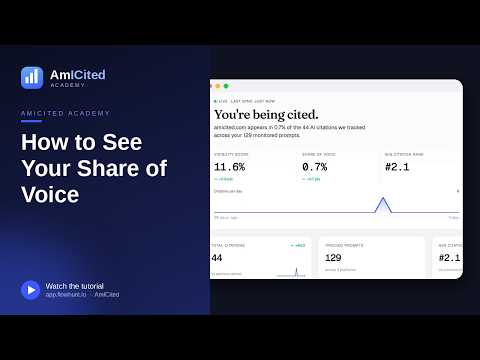 How to See Your Share of Voice
Find your AmICited Share of Voice and learn how it compares with your Visibility Score.
Read guide →
How to See Your Share of Voice
Find your AmICited Share of Voice and learn how it compares with your Visibility Score.
Read guide →
 How to Use the Domain Semantic Map
Explore the AmICited Domain Semantic Map to find clusters and topic gaps across prompts, fan-out queries and …
Read guide →
How to Use the Domain Semantic Map
Explore the AmICited Domain Semantic Map to find clusters and topic gaps across prompts, fan-out queries and …
Read guide →Ready to put it into practice?
Free check · 7-day trial · card required