


How to Browse Your Articles Library
Find, filter and open every GEO-optimized article you've generated in AmICited from the Articles library.

Every AI-optimized article your team produces has to live somewhere you can actually find it again, and that’s what the Articles library is for.
Quick Steps
- Click Articles in the left navigation to open the library grid.
- Use the type and tag filters to narrow the grid to the slice you need.
- Each card shows a type badge, title, tag, word count, and Updated date, plus a globe icon for published pages.
- Scan the grid before generating anything new so you don’t duplicate an existing angle.
- Open any card to jump into the Article Editor, or use the + button to start a new draft targeting a gap.
What Is AI-Optimized Content?
Generative engine optimization (GEO) is the practice of writing and structuring content specifically so that AI assistants (ChatGPT, Perplexity, Gemini, and Google AI Overviews) can read it, understand it, and cite it in their answers. This is a meaningfully different job from classic SEO copywriting. A page written to rank in Google’s ten blue links is optimized for keywords and backlinks; a page written to win an AI citation is optimized for clear claims, self-contained sections, direct answers to specific questions, and structure that a language model can extract and quote without ambiguity.
That distinction matters because AI-optimized content is rarely a single blog post: it’s a body of work. A brand trying to win visibility across dozens or hundreds of tracked prompts typically ends up producing many pieces: comparison pages that answer “X vs Y” questions, listicles that answer “best tools for Z,” how-to guides that answer procedural questions, and straight blog posts that build topical authority. Each of these targets a different cluster of prompts and a different stage of the buyer’s journey. AI content generation at this scale only works if you can see, at a glance, what already exists, otherwise teams waste cycles re-writing the same angle, or worse, leave real gaps in their prompt coverage untouched.
That’s the problem the Articles library solves. It’s the single inventory of every piece of AI-optimized content you’ve created inside AmICited: not a folder of disconnected drafts, but a structured, filterable record tied back to the prompts and topics you’re actually trying to win. Instead of hunting through documents or a CMS to remember whether you already covered a topic, you open one grid and see it immediately: what type of content it is, what it’s tagged with, how long it is, and when it was last touched.
Treating this library as your source of truth also protects the quality of your GEO output over time. Content that AI models cite tends to be current, specific, and non-redundant: publishing three overlapping articles that all vaguely address the same prompt dilutes your authority on that topic rather than reinforcing it. A visible, searchable library is what lets you catch that overlap before it happens, rather than after a competitor has already claimed the citation you were chasing.
Where to find it
Click Articles in the left navigation. The header explains the purpose directly: “Generate GEO-optimized articles from your tracked prompts, content engineered for [your domain] to win citations across ChatGPT, Perplexity, and Google AI Overviews.” That line is worth reading closely, because it captures the whole workflow this page supports: your tracked prompts feed the content plan, and the content you generate here is what closes the gap between “not mentioned” and “cited.”
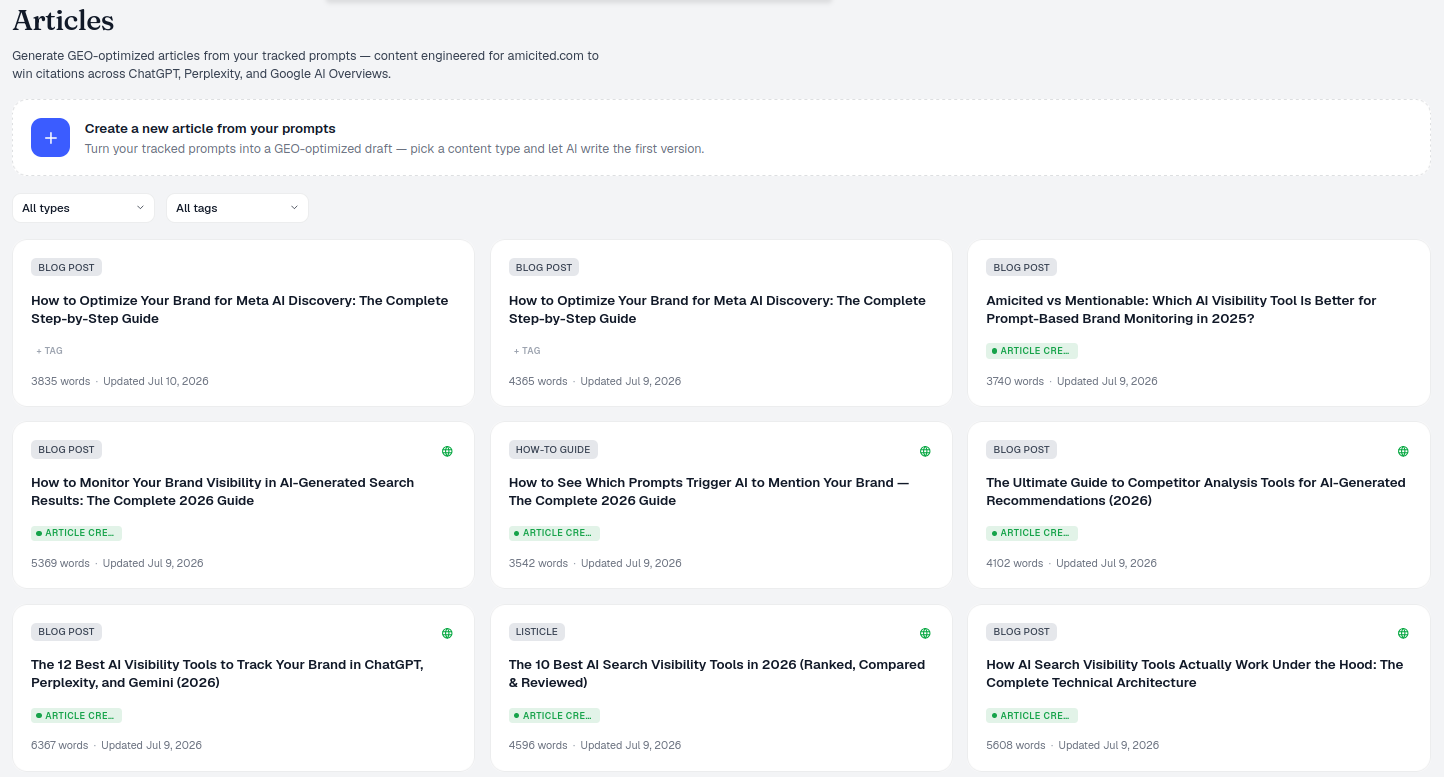
Comparison articles tagged for a campaign) once you’ve generated more than a handful.What’s on the page
- Create a new article: the banner at the top with a + button starts the Generate an article flow, where you can target a specific prompt or topic you’re not yet winning.
- Filters: All types and All tags dropdowns narrow the grid down to exactly the slice you need to review.
- Article cards: one per article, each showing:
- a type badge (Blog post, Listicle , Comparison , How-to guide…),
- the title and a short description,
- any tag you’ve applied,
- the word count and Updated date,
- a small globe icon indicating the article is published live on your site.
What It Measures and Why Each Field Matters
The fields on each card aren’t decorative: they’re the signals you need to manage a growing content operation without re-reading every draft.
Type badge. AmICited categorizes generated articles by content format because different formats win different kinds of prompts. Comparison pages tend to get cited on head-to-head and “alternative to” queries; listicles perform well on “best X for Y” prompts; how-to guides answer procedural questions where AI models favor clear, sequential steps. Seeing the type distribution across your whole library at a glance tells you whether your content mix actually matches the mix of prompts you’re tracking, or whether you’re over-indexed on one format and blind in another.
Tags. Tags are yours to define: campaign names, target personas, product lines, whatever grouping is useful to your team. Because tags are free-form, they’re the fastest way to isolate a subset of the library for a specific initiative (a launch, a client, a quarter) without relying on titles alone.
Word count. Length isn’t a vanity metric here; it’s a rough proxy for depth. Thin articles are more likely to be superficial restatements that don’t give an AI model enough substantive, specific material to quote; consistently short entries across your library can be an early signal that content needs expanding, not just publishing.
Updated date. AI models weight freshness. A page that hasn’t been touched in a year is more likely to be superseded by a competitor’s more current answer, especially on prompts tied to pricing, product features, or anything time-sensitive. Scanning the Updated column is the fastest way to spot articles that are quietly going stale.
Globe icon. This tells you, without opening the card, whether a draft is still sitting in AmICited or is actually live and crawlable by AI systems. A library full of well-written but unpublished drafts does nothing for your visibility; only published pages can be discovered and cited.
How to use it
- Scan your coverage. Before generating anything new, look at the grid to see what you’ve already produced, by type and by topic. This is how you avoid duplicating effort or publishing two competing answers to the same prompt.
- Filter to find things fast. As the library grows past a handful of entries, use the type and tag dropdowns together (for example, isolating every Comparison article tagged to a specific campaign) to review or update a cohort quickly instead of scrolling.
- Open any card to jump straight into the Article Editor and keep refining the draft, update stale sections, or adjust it to better structure content for AI citation .
- Create from prompts. When you spot a gap, a tracked prompt with no matching article, or a type of content you’re underrepresented in, use the banner’s + button to start a new draft targeting exactly the prompts you’re missing. This is easiest to do well once you’ve already run a content gap analysis against your tracked prompt set, so you know precisely which topics deserve the next slot in your pipeline.
- Watch your publishing cadence. Because the library shows Updated dates across every article at once, it’s also where you can sanity-check your overall content velocity : whether you’re shipping and refreshing content often enough to stay competitive on the prompts that matter most.
From here, every article is one click from editing, and every gap is one click from a new draft. The real value of the library, though, isn’t the grid itself; it’s what it lets you do with the rest of your GEO workflow. Because the Articles library is wired directly to your tracked prompts, it turns AI visibility monitoring from a passive dashboard into an active content pipeline: you see where you’re not being cited, you generate a piece engineered to close that specific gap, you publish it, and you come back to this same grid to confirm it’s live and check whether it needs a refresh. Agencies managing this process across multiple client domains will find the same filtering logic, type and tag, scales cleanly with AmICited’s workspace model for agencies , where keeping each client’s content inventory separate and reviewable matters just as much as generating the content in the first place. Used consistently, the library is less a filing cabinet than a running scoreboard of how much ground you’ve covered, and how much is still open for a competitor to take.
Frequently asked questions
Click Articles in the left navigation to open the library grid. It's a structured, filterable inventory of every piece of AI-optimized content you've created, showing each article's type, tag, word count, and Updated date, rather than a folder of disconnected drafts.
It indicates the article is published live on your site rather than still sitting as a draft inside AmICited. Only published, crawlable pages can actually be discovered and cited by AI systems, so the globe icon is a quick way to tell finished-and-live content apart from work still in progress.
Word count is a rough proxy for depth, not a vanity metric. Thin articles are more likely to be superficial restatements that don't give an AI model enough substantive material to quote, so consistently short entries across your library can signal content that needs expanding rather than just publishing.
Scan the grid with the type and tag filters together — for example, showing only Comparison articles tagged to a campaign — to see what you've already produced before creating something new. This helps you avoid duplicating an existing angle or publishing two competing answers to the same prompt.
More tutorials in this section
 How to Choose Prompts to Target
Choose tracked prompts for an AI-generated article in AmICited to focus its topic and citation goals.
Read guide →
How to Choose Prompts to Target
Choose tracked prompts for an AI-generated article in AmICited to focus its topic and citation goals.
Read guide →
 What Content Types Can You Generate?
Explore AmICited content types, from blog posts and FAQs to landing pages, comparisons, glossaries and …
Read guide →
What Content Types Can You Generate?
Explore AmICited content types, from blog posts and FAQs to landing pages, comparisons, glossaries and …
Read guide →
 How to Use the Article Editor
Tour the AmICited Article Editor, including its writing canvas, formatting tools, GEO score, outline and …
Read guide →
How to Use the Article Editor
Tour the AmICited Article Editor, including its writing canvas, formatting tools, GEO score, outline and …
Read guide →Ready to put it into practice?
Free check · 7-day trial · card required