


How to Use the Article Editor
Tour the AmICited Article Editor, including its writing canvas, formatting tools, GEO score, outline and search preview.

Once AmICited generates a draft, it opens in the Article Editor: a full writing workspace where you refine the piece, watch its GEO score, and get it ready to publish.
Quick Steps
- The Article Editor opens automatically after generation, or from any draft in the Articles library.
- Read through the canvas for accuracy and tone, then tighten structure with the formatting toolbar and Article Outline.
- Watch the GEO Score respond as you edit, and fix the weak spots it flags.
- Check the Search appearance preview and write a specific meta description.
- Publish, then track whether your targeted prompts start citing the page.
What Is AI-Optimized Content?
Generative engines like ChatGPT, Perplexity, Gemini and Google AI Overviews don’t rank pages the way traditional search does: they synthesize an answer from a handful of sources and decide, sentence by sentence, what to quote or paraphrase and whom to cite. That decision process is what generative engine optimization (GEO) is built around: writing and structuring content so an AI model can extract a clear, self-contained answer from it and confidently attribute that answer to your brand.
A page written for a human skimmer and a page written to be extracted by a language model aren’t quite the same document. AI systems favor content with unambiguous headings, answers that appear near the top of a section rather than buried after three paragraphs of preamble, specific facts and numbers instead of vague claims, and a logical outline the model can parse without guesswork. None of that happens by accident: it’s the product of deliberate editing, which is exactly why a generated draft needs a dedicated pass before it goes live rather than a quick skim.
This is also where a readability score becomes relevant, though it’s not the whole picture. Readability measures how easy prose is for a human to parse: sentence length, word complexity, structure. AI extractability shares some of that DNA (short, clear sentences help both audiences) but adds machine-specific concerns: does each section answer one question fully, is the key fact stated plainly rather than implied, and does the page’s structured data and metadata tell search and AI crawlers what the page is actually about. AmICited’s editor is built to surface both dimensions at once, so you’re not guessing which parts of a draft need work.
Because AI models re-crawl and re-evaluate pages continuously, a page’s citability isn’t fixed the moment you hit publish: it shifts as competitors publish sharper content and as the models’ own preferences evolve. That’s part of why editing matters more than it might for a traditional blog post: a page that reads clearly and states its claims explicitly today is more likely to keep earning citations as AI search visibility becomes a bigger share of how people find brands at all.
Where to find it
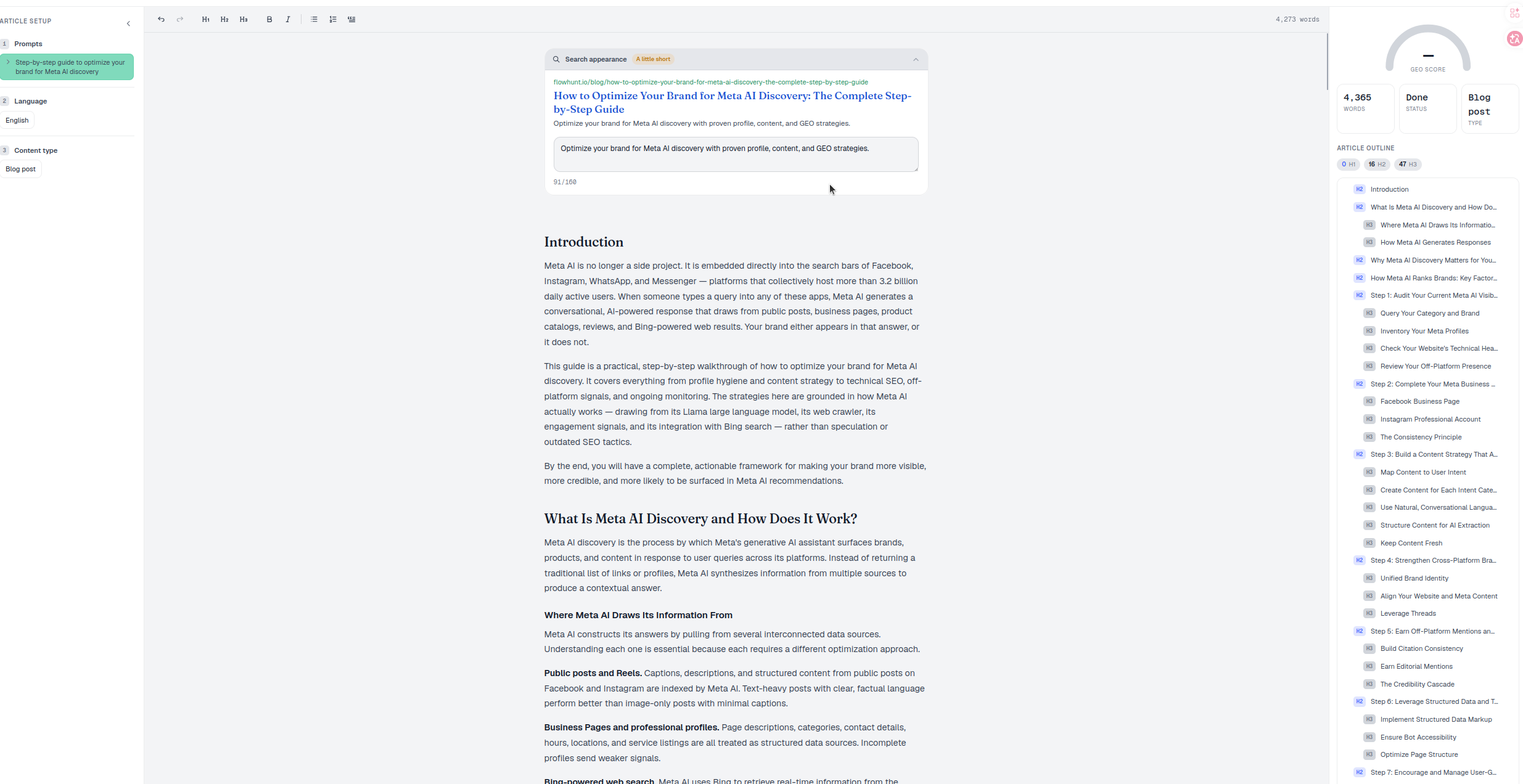
The editor opens automatically after you generate an article, or when you open any article from the Articles library. The header shows the title, a +TAG control for organizing drafts, a Saved indicator confirming your edits autosave as you type, and a Share button for sending the draft to a teammate or client for review before it goes anywhere near a CMS.
Because the editor sits between generation and publishing, it’s worth treating it as a checkpoint rather than a formality. This is the last place you control the piece before it’s live and, in AmICited’s workflow, before it becomes one more tracked page in your effort to get cited by AI models that have never heard of you or that only mention competitors today.
The main areas
- The canvas (center): the article itself, fully editable. This is standard rich-text editing: click anywhere and start typing, reorganize sections, rewrite AI-generated phrasing in your own voice, and add details, examples or data the model couldn’t have known.
- The formatting toolbar (top): undo/redo, headings (H1–H3), bold, italic, lists and more, with a live word count. Word count isn’t a target to hit for its own sake (a page that’s padded to look thorough usually performs worse than one that answers the question and stops) but tracking it as you edit helps you spot sections that have gone thin (a heading with two sentences under it rarely gets cited) or bloated (a paragraph repeating the same point three ways).
- Article Setup (left panel): the prompts, language and content type this draft was generated from, so you can see exactly which query the piece is meant to answer and keep your edits aligned with that intent rather than drifting into a different topic.
- Search appearance (top of the canvas): a live preview of how the page’s title and meta description will look in search. The meta description is a short, separate piece of copy from the article body, and it’s worth writing deliberately rather than accepting whatever the model drafted. It’s often the first thing a human sees in a results page, and a clear, specific summary here also gives AI systems an unambiguous signal about what the page covers.
- GEO Score (right): the AI-readability gauge, plus quick Words / Status / Type tiles that give you an at-a-glance read on the draft’s current state without scrolling back to the top.
- Article Outline (right): a clickable map of every heading for fast navigation, useful for checking that the piece’s structure actually matches how a reader (human or AI) would expect the topic to be broken down.
What the GEO score measures
The GEO score is the editor’s proxy for how easily an AI model could extract, understand and cite the piece. It responds to things like heading clarity, whether each section leads with its answer, sentence and paragraph length, and the presence of concrete specifics rather than generic statements. It’s closely related to what some in the industry call an AI content score : a composite read on a page’s machine-readability, as distinct from a general SEO score focused on keywords and backlinks.
Treat the score as a diagnostic, not a grade to game. A page can hit a high score and still fail to earn citations if the underlying claims are wrong, generic, or indistinguishable from what ten competitors already publish. The score tells you the piece is structured in a way AI models can parse; it doesn’t guarantee the content is worth citing. That second part is still down to your expertise, your data and your voice: the reason the draft needs a human pass at all.
A refining workflow
- Read it through for accuracy and tone, fix anything the AI got wrong or generic, and add the specific detail, data or point of view only you have.
- Tighten structure with the toolbar: clear headings, short sections, lists where they help. Check the Article Outline to confirm the piece reads logically top to bottom, and consider how each section could stand as a self-contained answer, similar to the approach in how to structure content so AI models can actually cite it .
- Watch the GEO Score respond as you edit, and address weak spots: usually vague sections, walls of text, or headings that don’t match what’s actually answered underneath them.
- Check the Search appearance preview and adjust the meta description so it accurately and specifically summarizes the page. This is also where good use of structured data principles pays off, since a precise title and description reinforce the same signals schema markup sends to crawlers.
- Publish, then track whether your targeted prompts start citing the page. A single edit rarely moves a share of voice number overnight, but a page that’s clearly structured and specific gives you a real shot at appearing in the answer the next time someone asks that question.
Each of these panels has its own guide in this section if you want the detail.
Where the editor fits in a broader visibility strategy
The Article Editor is one stage in a longer loop: AmICited’s SEO Agents can identify the prompts where you’re losing ground and draft content aimed at closing that gap, but the editor is where a generated draft becomes something worth publishing under your name. Treating it as a genuine editing pass, not a rubber stamp, is what separates content that briefly bumps a citation count from content that keeps earning mentions as AI models re-evaluate sources over time. Once a piece is live, the next useful step is watching how it performs: check whether it starts appearing in the prompts it targeted, compare its citation quality against competing sources, and feed what you learn back into the next draft.
Frequently asked questions
The GEO score is a gauge in the editor's right panel that estimates how easily an AI model could extract, understand, and cite your draft. It responds to heading clarity, whether each section leads with its answer, sentence and paragraph length, and the presence of concrete specifics rather than generic statements.
No. The score tells you the piece is structured in a way AI models can parse, but it doesn't guarantee the content is worth citing if the underlying claims are generic or indistinguishable from what competitors already publish. Treat it as a diagnostic to fix structural weak spots, not a grade to game.
The canvas is the editable article body in the center, with a formatting toolbar and live word count above it. Article Setup on the left shows the generation prompts, language, and content type; Search appearance previews your title and meta description; and the GEO Score and Article Outline sit on the right for quick diagnostics and navigation.
No, treat the draft as a starting point rather than a finished page. Read it for accuracy and tone, add the detail and point of view only you have, tighten structure with the toolbar, and check the Search appearance preview before publishing, since editing is what separates content that briefly bumps citations from content that keeps earning them.
More tutorials in this section
 How to Choose Prompts to Target
Choose tracked prompts for an AI-generated article in AmICited to focus its topic and citation goals.
Read guide →
How to Choose Prompts to Target
Choose tracked prompts for an AI-generated article in AmICited to focus its topic and citation goals.
Read guide →
 What Content Types Can You Generate?
Explore AmICited content types, from blog posts and FAQs to landing pages, comparisons, glossaries and …
Read guide →
What Content Types Can You Generate?
Explore AmICited content types, from blog posts and FAQs to landing pages, comparisons, glossaries and …
Read guide →
 What Is the GEO Score?
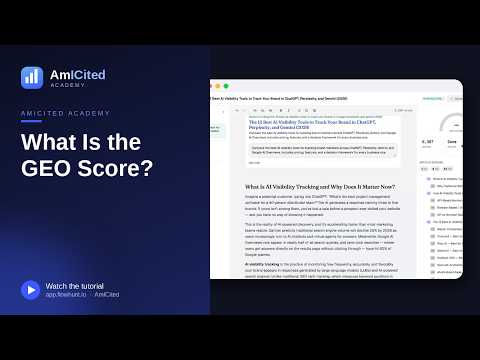
The GEO Score in AmICited rates how well a generated article is optimized for AI answer engines.
Read guide →
What Is the GEO Score?
The GEO Score in AmICited rates how well a generated article is optimized for AI answer engines.
Read guide →Ready to put it into practice?
Free check · 7-day trial · card required