


How to Preview Your SEO Meta Description
Preview and edit an article’s SEO title and meta description in the AmICited Article Editor’s Search Appearance panel.

Getting cited by AI is the goal, but your articles still show up in regular search too, and what people see before they click still decides whether they click at all.
At a Glance
- The Search appearance card sits at the top of the Article Editor, above the article body.
- It previews your page URL, title, and meta description exactly as a search engine would render them.
- A live character counter (e.g.
91/160) and length hint keep your description in the ideal range. - The preview updates as you type, so you catch truncation before you publish, not after.
- It checks CTR and search appearance only, separate from your GEO Score or AI citation potential.
What is a meta description?
A meta description
is a short HTML snippet (usually capped around 150–160 characters) that summarizes a page’s content for search engines and, by extension, for the people scanning a search engine results page
. It lives in the page’s <head> alongside the title tag
, which sets the blue, clickable headline shown above it. Neither the title tag nor the meta description is a ranking factor in the traditional sense (Google doesn’t boost your position because your description is well written), but together they form the “ad copy” for your organic listing. A search engine can also choose to ignore your written description and generate its own snippet from page content if it thinks that’s a better match for the query, which is exactly why writing a deliberate, on-topic description improves the odds your version gets used.
Why does this matter for a product built around AI citations? Because organic search results and AI-generated answers aren’t separate universes: they draw from overlapping crawl and indexing pipelines, and a page that reads clearly and states its value up front tends to perform in both. The title and description also directly shape click-through rate (CTR): the percentage of people who see your listing and actually click it. A vague or truncated description depresses CTR even for a page ranking in position one; a specific, benefit-led one can outperform a higher-ranked competitor with weak copy. Since AI Overviews and chat-based answers have made zero-click behavior more common, every listing you do get in front of a human now carries more weight, so you can’t afford to waste it on generic boilerplate.
None of this replaces the deeper work of generative engine optimization (structuring content so language models can extract and cite it), but it protects the other half of your traffic: the searchers who still click through a classic blue-link result. AmICited’s Search appearance panel exists so you don’t have to leave the editor, guess at character counts, or publish blind and find out three weeks later that your description got cut off mid-sentence.
It’s also worth understanding what a meta description is not. It isn’t the same as the excerpt a large language model pulls into a chat answer: that text is generated dynamically from whatever passage best answers the prompt, and it has nothing to do with the <meta name="description"> tag in your HTML. It isn’t a keyword field either; stuffing it with repeated phrases used to be a common tactic and now mostly just makes the snippet read as spam, which suppresses clicks rather than earning them. And it isn’t guaranteed to be shown as written: Google in particular will substitute its own auto-generated snippet, pulled from on-page text, whenever it judges that snippet to answer the specific query better than your static description does. Writing a strong, accurate description raises the odds it gets used, but it’s a probability game, not a guarantee, which is one more reason to make every character count rather than treating the field as a formality to fill in after the fact.
Where to find it
It’s the Search appearance card at the top of the writing canvas in the Article Editor, above the article body: the first thing you see when you open a draft, before any of the content generation tools below it.
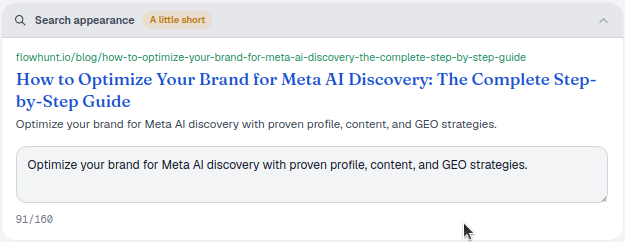
91/160). A meta description that’s too short (you’ll see a “A little short” hint) wastes space you could use to earn the click; one that’s too long gets truncated.What it shows
- The page URL as it will appear in results, so you can confirm the slug matches what you intended before publishing.
- The title in search-blue, exactly as a search engine would render it: this mirrors your title tag, the single most prominent piece of text a searcher sees.
- The meta description beneath it, shown in an editable box so you can rewrite it on the spot without switching to a separate SEO plugin or CMS field.
- A character counter (e.g.
91/160) and a length hint (such as “A little short”) to keep you in the ideal range: long enough to say something specific, short enough to avoid truncation.
Because the preview renders inline, it updates as you type: there’s no save-and-refresh cycle to see how an edit changes the way the snippet reads. That matters more than it sounds: most writers who edit meta descriptions in a plain text field end up guessing at length and only discover a truncation problem after the page is live and indexed, which means a second crawl and an unpredictable wait before the fix shows up in results. Catching it before you publish removes that lag entirely.
What it measures
The counter is tracking raw character count against the ~160-character budget that most search engines display before truncating with an ellipsis. It’s a proxy, not a hard rule: actual truncation depends on pixel width and the specific characters used (a row of “i"s and “l"s fits more characters than a row of “m"s and “w"s), but staying inside the counted range is a reliable way to avoid most cut-offs. The same logic applies to the title: search engines generally allow more room than the description, but a title that runs long still risks being clipped with an ellipsis in the results list, which is why the preview renders both fields together rather than checking them in isolation.
The panel isn’t scoring your GEO performance, your AI visibility score, or anything citation-related; it’s purely a search-appearance and CTR check, scoped to how the page shows up in a conventional results list. Don’t confuse a “too short” or “too long” hint with a quality judgment on the article itself: a technically perfect 155-character description can still fail to earn clicks if it doesn’t say anything a searcher cares about, and a slightly-over-budget description that gets truncated mid-value-proposition can still outperform a shorter one that front-loads the payoff. The counter tells you about length; only your own read of the preview tells you about persuasiveness.
How to use it
- Read the preview as a searcher would. Does the title and description make you want to click, or does it just restate the headline?
- Edit the meta description directly in the box; aim to fill most of the ~160-character budget with a clear, specific summary rather than a vague teaser.
- Front-load the value. Put the most compelling, keyword-relevant phrase first, in case the description gets truncated on a narrower screen or a search engine rewrites the tail end.
- Keep it honest. The description should match the article: misleading snippets hurt both clicks and trust, and search engines increasingly override descriptions that don’t match on-page content anyway.
- Re-check after major edits. If you restructure the article or change its angle partway through drafting, come back to the Search appearance card: a description written for the old outline can read oddly against the new one.
A well-written title and description won’t move your GEO score, but they compound with everything else the SEO agents module does in the same editor: the page still needs to earn AI citations through clear structure and answer-first writing, and separately earn organic clicks through a snippet that sells the page in two lines. If you want the writing itself to be more citable, not just more clickable, pairing this panel with a pass through how to structure content so AI models can actually cite it covers the other half of the equation: headings, atomic answers, and schema that make the same article easier for both a searcher and a language model to trust.
Treat the Search appearance panel as a final quality gate before you publish, not an afterthought. Teams tracking AI search visibility often focus entirely on citation rate and share of voice and forget that a chunk of their traffic still arrives through a classic result list, and that traffic responds directly to how good your title and description look next to everyone else’s. If you’re seeing organic clicks slide even as rankings hold steady, it’s worth reading up on how AI Overviews are reshaping organic click-through rates before assuming the fix is more content: sometimes it’s a sharper 160 characters.
Frequently asked questions
It previews your page URL, title and meta description exactly as a search engine would render them, and tracks the meta description's character count against the roughly 160-character budget most search engines display before truncating. It's purely a search-appearance and click-through-rate check, not a citation or ranking signal.
Aim to fill most of the roughly 160-character budget shown by the live counter. A description that's too short (you'll see an "A little short" hint) wastes space you could use to earn the click, while one that's too long risks getting truncated with an ellipsis in search results.
No. The panel is scoped only to how the page shows up in a conventional search results list and its effect on click-through rate. It doesn't score GEO performance or AI visibility; those depend separately on the article's structure and answer-first writing, checked elsewhere in the editor.
Not always. Google in particular can generate its own snippet from on-page content if it judges that a better match for the specific query than your written description. Writing a specific, accurate description raises the odds it gets used, but it's a probability game rather than a guarantee.
More tutorials in this section
 How to Choose Prompts to Target
Choose tracked prompts for an AI-generated article in AmICited to focus its topic and citation goals.
Read guide →
How to Choose Prompts to Target
Choose tracked prompts for an AI-generated article in AmICited to focus its topic and citation goals.
Read guide →
 What Content Types Can You Generate?
Explore AmICited content types, from blog posts and FAQs to landing pages, comparisons, glossaries and …
Read guide →
What Content Types Can You Generate?
Explore AmICited content types, from blog posts and FAQs to landing pages, comparisons, glossaries and …
Read guide →
 How to Use the Article Editor
Tour the AmICited Article Editor, including its writing canvas, formatting tools, GEO score, outline and …
Read guide →
How to Use the Article Editor
Tour the AmICited Article Editor, including its writing canvas, formatting tools, GEO score, outline and …
Read guide →Ready to put it into practice?
Free check · 7-day trial · card required