


Navigate Articles with the Outline
Use the AmICited Article Outline to navigate headings and review an article’s H1, H2 and H3 structure.

GEO-optimized articles can run long, several thousand words with dozens of sections, and scrolling through a draft like that to find one paragraph wastes time you don’t have.
At a Glance
- The Article Outline panel lives in the right rail of the Article Editor, below the GEO Score.
- It lists every heading in the article, indented by level (H2, H3), in document order.
- Click any heading to jump straight to it, no scrolling through the full draft.
- Heading counts at the top (e.g.
0 H1 · 16 H2 · 47 H3) give you a quick structural health check. - Use it to spot under- or over-developed sections before an AI engine has trouble extracting them.
What is an article outline?
An article outline is a hierarchical map of a document’s headings (its H1, H2 and H3 tags) laid out in the order they appear, with indentation showing which sections are sub-points of which. It’s the same idea as a book’s table of contents, except it’s generated automatically from the header tags already in your draft rather than written by hand. Every heading you add becomes a new entry; every heading you delete disappears from the list.
Heading structure matters more for generative engine optimization than most writers assume. ChatGPT, Perplexity, Gemini and Google AI Overviews don’t read an article top to bottom the way a human does: they parse it, break it into chunks, and pull out the passage that most directly answers a given prompt. A clean heading hierarchy is what makes that chunking possible. When each H2 covers one clearly labeled subtopic and each H3 nests logically underneath it, an AI model can isolate the exact section that answers “how do I do X” without dragging in unrelated context from three paragraphs away. This is why an AI-scannable format (short, well-labeled sections rather than dense, undifferentiated prose) tends to get cited more often than the same information written as one continuous block.
The heading hierarchy also signals editorial intent. A model (or a human skimming) can tell from H2/H3 nesting alone whether a piece covers “what,” “why,” and “how” for a topic, or whether it only covers one of those angles. Flat structure (a wall of H3s with no H2s, or one 2,000-word section with no subheadings at all) hides that intent and makes the content harder to lift cleanly into an answer. This is closely related to answer-first content structure : AI engines favor content where the heading itself states the question or topic plainly, and the text beneath it answers it directly, rather than heading text that’s clever but vague.
For a long-form piece, the kind AmICited’s AI-optimized content generation tools are built to produce, this structural discipline is not optional polish, it’s the difference between a draft that reads well internally and one that actually performs across AI Overviews, ChatGPT, and Perplexity. That’s exactly what the Article Outline panel is designed to help you check as you write.
Where to find it
The Article Outline lives in the right rail of the Article Editor, directly below the GEO Score. It’s always visible while you’re writing, so you can check structure without leaving the draft or scrolling back to the top.
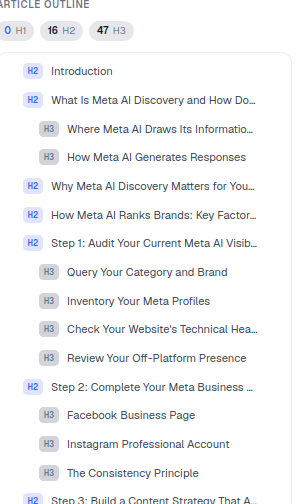
0 H1 · 16 H2 · 47 H3) are a quick structure check. Well-structured, scannable content is exactly what AI answer engines like to quote: a healthy spread of H2s and H3s is a good sign.What it shows
- Heading counts at the top of the panel: a live tally of how many H1, H2 and H3 headings the article currently has. This number updates as you type, so you always know the shape of the document without counting manually.
- A clickable list of every heading in the article, in document order, each tagged with its level (H2, H3) and indented to show hierarchy: H3s nest visually under the H2 they belong to, the same way they’ll nest logically in the published page.
Together, these two elements turn a long draft into something you can audit in seconds rather than something you have to re-read.
How to use it
- Click any heading to jump straight to it. Instead of scrolling through a 4,000-word draft looking for the section on pricing or methodology, click its entry in the outline and the editor scrolls straight to that heading. This is the single biggest time-saver on long articles: navigation that would take dozens of scroll-and-search actions becomes one click.
- Scan the structure before you scan the prose. The indented list reveals, at a glance, whether your sections flow logically (introduction, then core sections, then a close) or whether the argument jumps around. It also shows immediately whether any one part of the article is over-developed (five H3s under a single H2) or under-developed (an H2 with no supporting H3s at all).
- Spot structural problems early. A wall of H3s with no H2s above them, or one giant section that never breaks into subheadings, shows up instantly in the outline, long before it would be obvious from scrolling the draft itself. Fix it using the toolbar’s heading controls: promote a paragraph to an H2, demote an over-ranked H3, or split one bloated section into two.
- Use the counts as a target, not just a readout. If the count shows
0 H1 · 3 H2 · 2 H3on a 3,000-word article, that’s a signal the piece is under-segmented: each H2 is likely covering too much ground for an AI engine to extract cleanly. Aim for enough H2s that each one maps to a single, answerable subtopic, with H3s used for the finer distinctions inside it. - Re-check after edits. Every time you restructure a section (merge two H2s, add a new comparison table, insert an FAQ block), click back through the outline to confirm the hierarchy still makes sense. It’s much faster than re-reading the whole draft to catch a heading that’s now nested at the wrong level.
Think of the outline as both a table of contents and a structure health-check for every draft: it helps you navigate while you write, and it helps you audit the finished piece for exactly the kind of heading hierarchy that AI engines rely on to extract and cite the right passage.
Why this matters beyond the editor
Heading structure isn’t cosmetic: it directly shapes whether a passage gets pulled into an AI answer at all. When you structure content so AI models can actually cite it , you’re not just making the page easier to skim for a human reader; you’re making each section addressable on its own, which is exactly what a retrieval step inside ChatGPT or Perplexity needs. A well-organized outline is also a leading indicator of your GEO Score: articles with clear, evenly distributed H2/H3 structure consistently score better than those with flat or lopsided heading trees, because the scoring logic rewards the same scannability that AI engines reward.
This becomes especially important on genuinely long-form content : guides, comparisons, and reference pieces that need to answer many related questions in one page. The longer the piece, the more the outline becomes your main working tool rather than a nice-to-have, because it’s the only view that shows you the whole document’s shape at once. Teams that publish these guides regularly often keep a running checklist for structured content that gets cited alongside the outline panel, treating heading discipline as a repeatable step in every draft rather than a one-off cleanup pass.
Where you take this next depends on how much of your content pipeline you want structure-checked automatically. If you’re drafting manually, make a habit of opening the Article Outline before you consider a piece done. Treat a lopsided heading count the same way you’d treat a typo, as something to fix before publishing. If you’re producing content at volume, it’s worth looking at how AmICited’s AI visibility tracking connects structure to outcomes: you can watch, prompt by prompt, whether better-structured articles actually convert into more citations across ChatGPT, Perplexity, Gemini and AI Overviews, the same way HZ-Containers used AI-optimized content to grow their organic footprint. Either way, the outline is the fastest place to start: a two-second scan that tells you whether a draft is ready to earn citations or still needs work.
Frequently asked questions
It shows a live heading count (e.g. 0 H1 · 16 H2 · 47 H3) plus a clickable list of every H2 and H3 heading in the article, indented to show hierarchy and listed in the order they appear in the draft. It updates automatically as you add, delete, or edit headings, so it always reflects the current state of the document.
Open the Article Outline panel in the right rail of the Article Editor, below the GEO Score, and click any heading in the list. The editor scrolls straight to that heading, which replaces the scroll-and-search you'd otherwise need on a multi-thousand-word draft.
AI engines don't read an article top to bottom; they parse it into chunks and pull out the passage that most directly answers a prompt. A clean H2/H3 hierarchy, where each H2 covers one clearly labeled subtopic, is what makes that chunking possible, so a well-structured article is easier for a model to extract and cite than the same content written as dense, undifferentiated prose.
A low H2 count on a long piece (e.g. 0 H1 · 3 H2 · 2 H3 on 3,000 words) signals the article is under-segmented, with each H2 likely covering too much ground for an AI engine to extract cleanly. Use the editor's toolbar to promote a paragraph to an H2, demote an over-ranked H3, or split a bloated section into two, then re-check the outline.
More tutorials in this section
 How to Choose Prompts to Target
Choose tracked prompts for an AI-generated article in AmICited to focus its topic and citation goals.
Read guide →
How to Choose Prompts to Target
Choose tracked prompts for an AI-generated article in AmICited to focus its topic and citation goals.
Read guide →
 What Content Types Can You Generate?
Explore AmICited content types, from blog posts and FAQs to landing pages, comparisons, glossaries and …
Read guide →
What Content Types Can You Generate?
Explore AmICited content types, from blog posts and FAQs to landing pages, comparisons, glossaries and …
Read guide →
 How to Use the Article Editor
Tour the AmICited Article Editor, including its writing canvas, formatting tools, GEO score, outline and …
Read guide →
How to Use the Article Editor
Tour the AmICited Article Editor, including its writing canvas, formatting tools, GEO score, outline and …
Read guide →Ready to put it into practice?
Free check · 7-day trial · card required