


How to Compare a URL Against a Prompt
Compare one of your URLs with the pages AI engines cite for a prompt using AmICited’s URL comparison tool.

Before you rewrite a page, it helps to know how it measures up. Compare a URL crawls one of your pages and stacks it against the pages AI engines currently cite for a prompt, so you can see the gap you need to close to get cited.
Quick Steps
- Click Compare a URL in the top-right of any prompt detail page and enter the page URL you want cited for that prompt.
- AmICited crawls your page and lines it up against the sources AI engines currently cite for that exact prompt.
- The report shows what’s covered, what’s thin, and what’s missing entirely relative to the winning sources.
- Treat each gap as a discrete edit, not a full rewrite; often one missing section or statistic is what’s keeping you out.
- Past analyses are saved under Previously analyzed URLs, so you can re-check after edits and compare before and after.
What is a URL-to-prompt comparison?
A URL-to-prompt comparison is a diagnostic that answers one narrow question: for a specific question people ask AI assistants, how does this exact page on your site compare to the pages that ChatGPT, Perplexity, Gemini, or Google AI Overviews are already citing? It’s a different lens than a generic content audit or a traditional SEO crawl, because it’s anchored to a single prompt rather than a keyword or a whole site. The comparison pulls the current cited sources for that prompt, crawls your page, and evaluates how closely your content maps to what those winning sources cover.
This matters because citation in generative engines doesn’t work like classic search ranking. AI models don’t return ten blue links for a person to sift through. They synthesize an answer and select a small number of sources to cite as support. Which sources get picked depends on source ranking signals like topical completeness, clarity of structure, freshness, and how directly the page answers the underlying question. A page can rank well in traditional search and still be invisible in an AI answer, because it’s missing the specific sub-points the model is pulling from other sources.
That’s the gap a URL-to-prompt comparison exposes. Instead of guessing why a competitor’s page gets cited and yours doesn’t, you get a side-by-side view: what the cited pages contain that yours doesn’t, where your page already overlaps with them, and where it diverges. It turns “why aren’t we cited for this?” from a vague question into a checklist.
This is also a more efficient way to spend editing time than a broad rewrite. Content teams often default to improving pages based on general best practice (more headings, more detail, a fresher publish date) without knowing whether any of that actually addresses what a specific prompt requires. A URL-to-prompt comparison replaces that guesswork with evidence tied to a real, observed set of citations, so the changes you make are aimed at a gap that’s actually costing you visibility rather than a gap you assume exists.
The output is only as useful as the prompt you choose. Comparing a URL against a prompt nobody asks, or against a page that isn’t actually meant to answer that prompt, tells you very little. The comparison is most valuable when it’s tied to a real, tracked prompt, one your AI rank tracker shows you’re currently missing or under-ranking on, and to the page on your site that’s the natural candidate to close that gap.
Where to find it
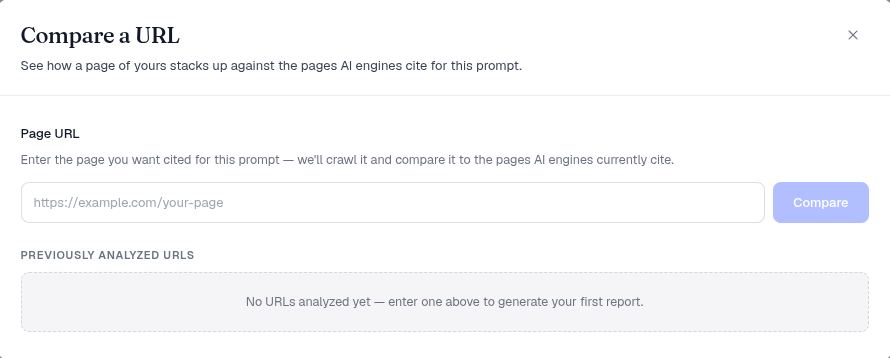
Click Compare a URL in the top-right of any prompt detail page. A dialog opens: “See how a page of yours stacks up against the pages AI engines cite for this prompt.” Because the tool lives on the prompt detail page rather than in a general content-audit section, every comparison you run is automatically scoped to that one prompt’s cited sources: you don’t have to manually tell it which competitors or sources to check against.
Step by step
- Enter the page URL you want cited for this prompt in the Page URL field. This should be the page you’d want an AI assistant to reference if it answered this exact question, not your homepage or a loosely related category page.
- Click Compare. As the helper text says, “we’ll crawl it and compare it to the pages AI engines currently cite.” AmICited fetches your page’s live content and lines it up against the sources currently winning citations for that prompt.
- Review the report to see how your page aligns with the cited sources for this question. This is where you’ll see what’s covered, what’s thin, and what’s absent entirely on your page relative to what’s already earning citations.
- Your analyses are saved under Previously analyzed URLs, so you can revisit a report without re-crawling. That history is useful once you start iterating: you can pull up the original report, compare it to a fresh one after an edit, and see the delta without losing your starting point.
What it measures
The comparison isn’t a generic readability or SEO score. It’s built specifically around citation-worthy content for the prompt in question, meaning it looks at whether your page actually contains the information an AI model would need to use it as a source. That typically comes down to a few things: whether your page covers the same sub-topics and specific details the cited pages cover, whether the information is stated clearly enough to extract (rather than buried in dense paragraphs), and whether your page is missing entire angles of the question that the winning sources address. Because AI answers are frequently assembled from several underlying sub-queries, a process sometimes called query fan-out , a single prompt can quietly require your page to cover four or five distinct facets, not just the headline question.
How to use it
- Pick the right prompt and page. Start with a high-value prompt you’re missing and the page most relevant to it. Prioritize prompts with real search intent and volume behind them rather than working through your prompt list alphabetically. Your prompt tracking list should already be sorted by how often each prompt fires and how much you’re currently losing on it.
- Read it as a to-do list. The comparison points at where your page falls short of what’s being cited. Treat each gap as a discrete edit rather than a reason to rewrite the whole page. Often it’s one missing section, one missing statistic, or one missing definition that’s keeping you out of the citation set.
- Edit, then re-check. After improving the page, run the comparison again to confirm it’s moved closer. Because previous runs are saved, you can hold the before-and-after side by side and confirm the edit actually closed the gap rather than just feeling like an improvement.
- Pair it with the fan-out heatmap. Use the heatmap to see which sub-queries to cover, then Compare a URL to check your page actually covers them. The heatmap tells you what’s missing at the topic level; the comparison confirms whether your specific page, as written, actually addresses it.
It’s the bridge between diagnosis (what AI cites) and action (making your page citable). Used well, it turns content gap analysis from a one-time audit into a repeatable loop: track a prompt, see you’re missing it, compare your candidate page against the sources that are winning, close the specific gaps the report surfaces, and re-check until the page earns the citation.
Where this fits in a broader visibility workflow
Compare a URL is deliberately narrow: it answers “is this page good enough for this prompt?” rather than trying to score your whole site’s AI search visibility . That narrowness is the point: broad content audits tell you what’s generally weak, but they rarely tell you exactly which paragraph to add to win a specific citation. Once you’ve used it to identify what a page is missing, the actual edit is usually a matter of following established guidance on how to structure content so AI models can cite it : clear headings, direct answers near the top, and the kind of atomic, extractable statements models tend to lift into their responses. If you’re managing this across dozens or hundreds of prompts rather than one page at a time, it’s worth pairing the manual comparison workflow with SEO agents that can turn identified gaps into drafted, ready-to-publish pages at scale, so the loop of “find the gap, close the gap, re-check” doesn’t depend entirely on manual editing time.
Frequently asked questions
It crawls a page you specify and lines it up against the pages AI engines currently cite for one specific tracked prompt. The report shows what's covered, what's thin, and what's missing entirely on your page relative to the sources that are already winning citations for that exact question.
Enter the page you'd want an AI assistant to actually reference if it answered this exact question, not your homepage or a loosely related category page. The comparison is scoped to that specific prompt's cited sources, so it's only useful if the URL you enter is a genuine candidate to answer it.
No. It's built specifically around citation-worthy content for the prompt in question: whether your page covers the same sub-topics as the cited pages, states information clearly enough to extract, and addresses every angle the winning sources cover. It doesn't grade your page's overall SEO health.
Re-run the comparison after making changes. Past analyses are saved under Previously analyzed URLs, so you can hold the before-and-after reports side by side and confirm the edit moved your page closer to the cited sources rather than just feeling like an improvement.
More tutorials in this section
 How to Use the Fan-Out Queries Heatmap
Explore related fan-out queries for a prompt and see how well cited pages match them in AmICited’s heatmap.
Read guide →
How to Use the Fan-Out Queries Heatmap
Explore related fan-out queries for a prompt and see how well cited pages match them in AmICited’s heatmap.
Read guide →
 How to Use the Semantic Scatter Map
Explore the AI semantic scatter map to compare prompts, fan-out queries, cited URLs and your page content.
Read guide →
How to Use the Semantic Scatter Map
Explore the AI semantic scatter map to compare prompts, fan-out queries, cited URLs and your page content.
Read guide →
 Read AI Responses to a Tracked Prompt
Read the latest AI response for a tracked prompt, including the brands and sources detected by AmICited.
Read guide →
Read AI Responses to a Tracked Prompt
Read the latest AI response for a tracked prompt, including the brands and sources detected by AmICited.
Read guide →Ready to put it into practice?
Free check · 7-day trial · card required