


Check AI Article Generation Settings
See the prompts, language and content type for a draft in the AmICited Article Setup panel.
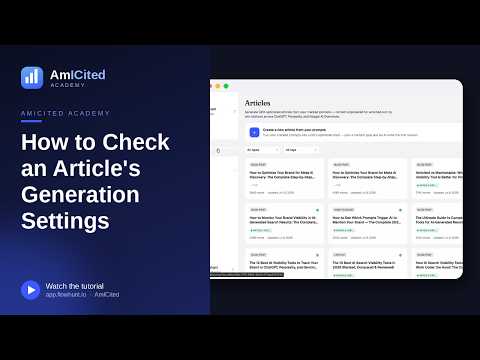
Come back to an article a week later and you’ll want to remember why it exists: which prompts it targets, what language and shape it was built as.
Quick Steps
- Open the Article Setup panel on the left side of the Article Editor.
- It shows the tracked prompt(s), language, and content type the draft was generated from.
- Use it to confirm the draft still targets the right questions before you start editing.
- Watch for drift: if the content type or topic no longer matches the target prompts, regenerate or refocus.
- Pair it with the Article Outline panel to check both intent and structure at once.
What are an article’s generation settings?
Every piece of AI-optimized content starts from a handful of decisions: which questions it’s meant to answer, what language it’s written in, and what format best suits those questions. In generative engine optimization (GEO), these decisions matter more than they do in traditional content marketing, because the “audience” for the first draft isn’t a human reader browsing your blog; it’s an AI model deciding whether your page is a good match for a specific query. An article written without a clear target prompt tends to read as generic; one built around a tight cluster of related prompts reads as a direct, citable answer.
That’s why AmICited treats “generation settings” as first-class metadata attached to every article, not a one-time input you set and forget. The settings are the same three choices you make at the start of the Generate an article flow: the tracked prompt or prompts the draft is aiming to win, the language it should be written in, and the content type: the structural shape (how-to, comparison, blog post, and so on) that best fits how those prompts are phrased. Together they define the brief the AI writer worked from.
This matters for AI visibility because content that’s loosely aimed rarely gets cited consistently. AI assistants like ChatGPT, Perplexity, Gemini and Google AI Overviews tend to pull answers from pages that map cleanly onto the phrasing and intent of a query; a page trying to serve ten unrelated questions at once dilutes its relevance to all of them. Keeping the original targeting visible alongside the draft is what lets you catch drift: if an article has grown to cover topics its target prompts never asked about, or if the content type no longer matches the phrasing of those prompts, that’s a signal the draft needs to be refocused or regenerated.
In short, generation settings are the answer to “what was this article supposed to do?” Having that answer on screen, rather than buried in your memory or a separate doc, is what keeps a large content library coherent as it grows.
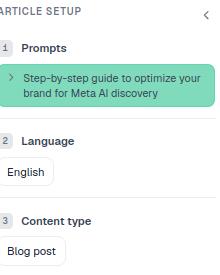
Where to find it
It’s the Article Setup panel on the left side of the Article Editor (collapse it with the arrow to give the canvas more room). It stays attached to the article for its whole lifecycle, whether you’re editing a freshly generated draft, revisiting a piece you published months ago, or reviewing an article a teammate created. You don’t have to dig through a separate settings page or a prompt library search to reconstruct what a piece was for; the context sits right beside the words you’re editing.
What it shows
The panel mirrors the key steps from the Generate an article flow, laid out in the same order you made the choices originally:
- 1 · Prompts: the tracked prompt(s) this article is aiming to get cited for, shown as chips. These come directly from your prompt tracking list, so clicking through connects the draft back to the live query it’s meant to answer.
- 2 · Language: the language the draft was written in, which should match the market of the prompts it targets rather than defaulting to your own working language.
- 3 · Content type: the shape it was generated as (e.g. Blog post, how-to, comparison), reflecting the format AmICited judged best suited to how those prompts are phrased.
Each of these three settings answers a different question about the draft. Prompts answer “what is this for.” Language answers “who is it for.” Content type answers “how should it read.” Seeing all three together, rather than having to infer them from the text itself, is what makes the panel useful for anyone auditing a content library rather than just the person who generated the piece.
Why generation settings matter for AI visibility
A prompt-content mismatch is one of the more common, and more fixable, reasons a piece of content underperforms in AI search. If you generated an article to target a cluster of prompts about, say, pricing comparisons, but the draft drifted during editing toward general product explainer copy, the article stops being a strong match for the AI rank tracker signals AmICited is watching. The Article Setup panel is the fastest way to catch that kind of drift before it costs you a citation. Because it’s a static read-back rather than something you have to recompute, checking it costs nothing: you glance left, compare it to what’s on the page, and move on.
The same logic applies to language. Publishing an English article against prompts your audience only asks in French or German is a mismatch AI models generally won’t bridge for you; each language is effectively its own competition for citations. And content type matters because AI models tend to prefer the structural shape that best matches how a question is asked: a listicle style rarely satisfies a comparison-intent prompt, and a narrow how-to rarely satisfies a broad definitional one. Confirming the content type still fits the prompts is a quick way to sanity-check that the draft’s shape hasn’t drifted from its brief.
How to use it
- Confirm the target. Before editing, glance at the prompts so you keep the draft aimed at the right questions. If you’re not sure why a particular prompt was chosen, this is also a good moment to check how that prompt performs elsewhere, for example whether you’re already appearing for it, or whether it’s a prompt where you’re not yet ranked.
- Sanity-check the shape. If the content type doesn’t match how your prompts are phrased, that’s a sign to regenerate with a better fit rather than trying to force the existing draft to cover new ground.
- Stay oriented in long sessions. On a big multi-section draft, the panel is a constant reminder of the article’s purpose, which matters most on the longer pieces where it’s easiest to wander off-topic paragraph by paragraph.
- Use it during review, not just authoring. If you’re reviewing a colleague’s draft or auditing older content, Article Setup gives you the same context the original author had, without needing to ask them or dig through a separate prompt library .
- Cross-check against performance. If an article isn’t getting cited despite matching its target prompts on paper, that’s a cue to look at the content itself, whether it actually answers those prompts directly enough, rather than the targeting.
Pair it with the Article Outline on the right: Setup tells you what the article is for, the outline shows how it’s built. Used together, the two panels let you evaluate a draft on both axes, intent and structure, without leaving the editor.
Keeping a content library coherent over time
The value of Article Setup compounds as your content library grows. A handful of articles are easy to keep straight from memory; dozens or hundreds are not. Teams running ongoing GEO programs typically generate new drafts on a regular cadence, often as part of a broader content gap analysis that surfaces prompts where competitors are winning citations and you aren’t. Every one of those drafts needs the same discipline: a clear target, a matching language, and a content type suited to the query. Article Setup is what makes that discipline auditable after the fact, not just something you get right in the moment of generation.
If you’re building out a larger content operation on top of AmICited, it’s worth pairing this habit with the SEO Agents workflow, which turns visibility gaps directly into drafted, targeted articles, so the generation settings you’re checking here were chosen systematically, from real gaps in your share of voice , rather than picked ad hoc. Getting into the habit of checking Article Setup before every editing session is a small step, but across a growing library of AI-optimized content it’s the difference between a set of pages that each earn their citations and a pile of drafts nobody can quite explain anymore.
Frequently asked questions
It's the panel on the left side of the Article Editor that reads back the choices you made when generating the article: the tracked prompt or prompts it targets, its language, and its content type. It stays attached to the article for its whole lifecycle, so you can always see what a draft was built to do.
Open the Article Setup panel in the Article Editor and look at section 1, Prompts, which shows the tracked prompt or prompts the draft is aiming to get cited for as chips. These link back to your live prompt-tracking list, so you can jump straight to how that query is performing.
AI models tend to prefer the structural shape that matches how a question is phrased, so a listicle rarely satisfies a comparison-intent prompt and a narrow how-to rarely satisfies a broad definitional one. If a draft has drifted from its original content type during editing, that's a signal to regenerate or refocus rather than force the existing draft to fit.
Article Setup tells you what the article is for — its target prompts, language, and content type. The Article Outline, on the right side of the editor, shows how the article is actually built. Used together, they let you evaluate a draft on both intent and structure without leaving the editor.
More tutorials in this section
 How to Choose Prompts to Target
Choose tracked prompts for an AI-generated article in AmICited to focus its topic and citation goals.
Read guide →
How to Choose Prompts to Target
Choose tracked prompts for an AI-generated article in AmICited to focus its topic and citation goals.
Read guide →
 What Content Types Can You Generate?
Explore AmICited content types, from blog posts and FAQs to landing pages, comparisons, glossaries and …
Read guide →
What Content Types Can You Generate?
Explore AmICited content types, from blog posts and FAQs to landing pages, comparisons, glossaries and …
Read guide →
 How to Use the Article Editor
Tour the AmICited Article Editor, including its writing canvas, formatting tools, GEO score, outline and …
Read guide →
How to Use the Article Editor
Tour the AmICited Article Editor, including its writing canvas, formatting tools, GEO score, outline and …
Read guide →Ready to put it into practice?
Free check · 7-day trial · card required